7 WordPress 7.0 Features That Could Replace Plugins or Custom CSS
Discover seven WordPress 7.0 features that can replace basic plugins or custom CSS, including visibility, icons, galleries, fonts and mobile menus.
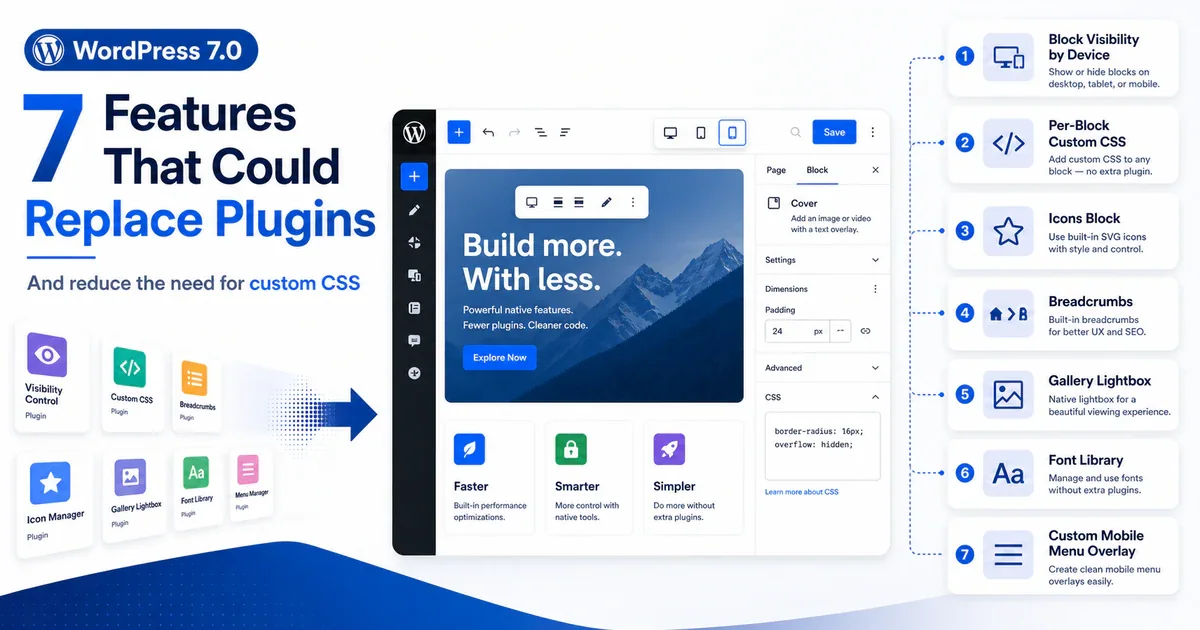
Quick summary: WordPress 7.0 adds several tools that used to require a small plugin, a page-builder add-on, or a custom CSS workaround. You can now control block visibility by device, style a single block with CSS, add icons and breadcrumbs, create a gallery lightbox, manage fonts, and design a mobile menu overlay inside WordPress.
That does not mean WordPress 7.0 makes plugins unnecessary. A specialist plugin still makes sense when you need advanced controls. The real opportunity is to remove lightweight plugins that perform only one basic job WordPress can now handle itself.
WordPress 7.0, named “Armstrong,” was released on May 20, 2026. Here are the seven features worth checking before you install another design plugin or add another CSS workaround.
At a glance
| WordPress 7.0 feature | Could replace | Keep the plugin when you need |
|---|---|---|
| Block visibility by device | Responsive visibility plugin or media-query CSS | Custom breakpoints, conditional logic, or performance-based loading |
| Custom CSS on one block | Extra CSS classes and global CSS workarounds | A visual CSS editor, reusable rules, or stylesheet management |
| Icons block | A basic icon block plugin | Brand icons, custom SVG libraries, or hundreds of icon choices |
| Breadcrumbs block | A simple breadcrumb plugin | Advanced SEO schema, complex taxonomies, or a classic-theme integration |
| Gallery lightbox slideshow | A basic lightbox plugin | Albums, filters, video, zoom, downloads, or ecommerce galleries |
| Expanded Font Library | A basic custom-font plugin | Advanced font optimization or page-builder-specific font controls |
| Custom mobile menu overlays | A basic mobile-menu plugin | Mega menus, side drawers, conditional menus, or classic themes |
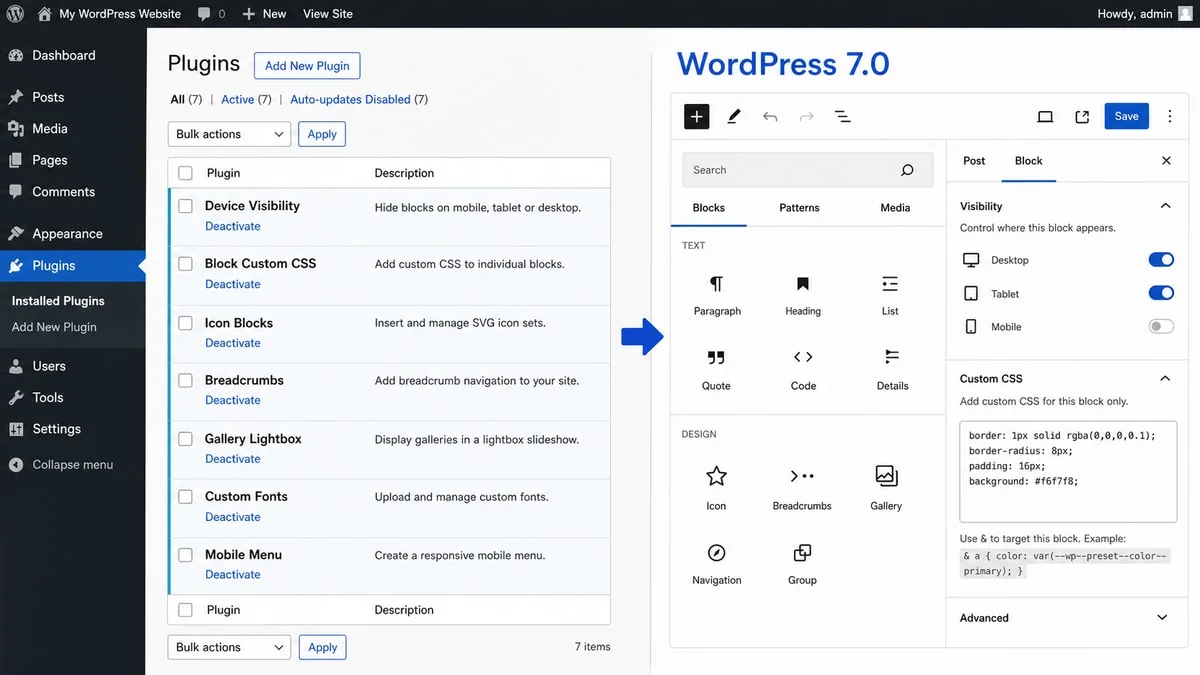
Before you remove any plugin
Do not deactivate seven plugins immediately after updating WordPress. First check what each plugin actually does.
A plugin called “breadcrumbs,” for example, may also add structured data, control taxonomy paths, and integrate with your SEO settings. A gallery plugin may compress images or provide albums in addition to opening images in a lightbox.
Use this safer process:
- Make a full backup.
- Test WordPress 7.0 on a staging site.
- Rebuild the feature with the native WordPress tool.
- Deactivate the old plugin, but do not delete it yet.
- Clear every cache and test the front end on desktop and mobile.
- Delete the plugin only after you know nothing is missing.
The goal is not the lowest possible plugin count. The goal is fewer unnecessary dependencies without losing functionality.
1. Show or hide blocks by device
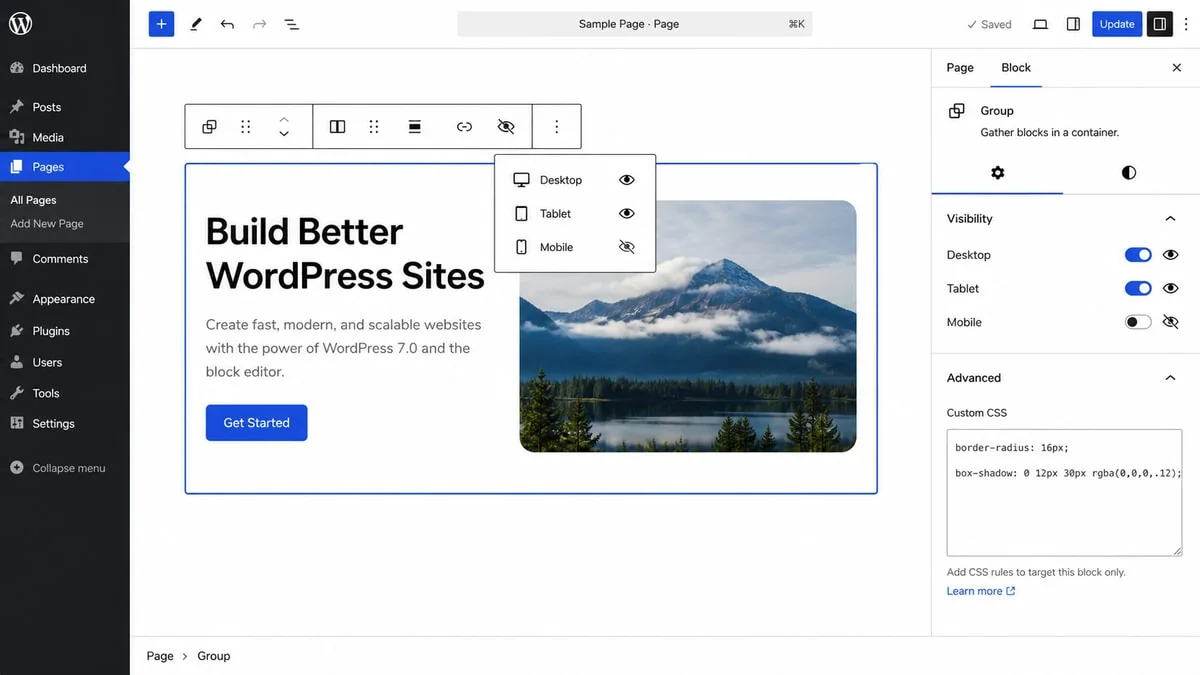
WordPress 7.0 lets you control whether an individual block appears on desktop, tablet, or mobile. This is useful for small responsive changes that previously required a visibility plugin or CSS media query.
You might use it to:
- Hide a decorative image on small screens.
- Show a shorter call to action on mobile.
- Remove a wide comparison table from the phone layout.
- Display a desktop navigation prompt only on larger screens.
How to use block visibility
- Select a block in the editor.
- Open its visibility controls from the block toolbar or inspector sidebar.
- Choose the desktop, tablet, or mobile viewports where the block should be hidden.
- Preview all three device sizes before publishing.
WordPress also marks blocks with active visibility rules in List View, which makes those rules easier to find later.
What it can replace
This can replace a responsive visibility plugin if that plugin only hides blocks at common device sizes. It can also replace simple CSS such as:
@media (max-width: 767px) {
  .desktop-only-banner {
    display: none;
  }
}
Important limitation
Blocks hidden for a viewport are still rendered in the page’s HTML. WordPress hides them with CSS. That means this feature is for responsive presentation, not performance optimization.
Do not duplicate a large video, slider, or image gallery for every device and assume the hidden versions cost nothing. The hidden content remains in the document and its assets may still be downloaded.
WordPress 7.0 also uses fixed mobile, tablet, and desktop breakpoints. If your design needs custom breakpoints or conditions based on user role, date, login status, or other rules, a dedicated visibility plugin may still be the better tool.
2. Add custom CSS to one specific block
Before WordPress 7.0, styling one particular block usually took two steps:
- Give the block an additional CSS class.
- Find a global CSS area and write a selector for that class.
WordPress 7.0 adds a Custom CSS field directly to individual block instances. WordPress scopes the CSS to the selected block and previews the result in the editor.
How to use block-level custom CSS
- Select the block you want to style.
- Open the Advanced panel in the block settings.
- Find Custom CSS.
- Enter CSS declarations without writing a selector.
For example:
border: 1px solid rgba(82, 132, 255, 0.45);
box-shadow: 0 20px 60px rgba(18, 42, 110, 0.25);
You can also use & for a nested selector:
& a {
  text-decoration-thickness: 2px;
}
The field is available only to users with permission to edit CSS. WordPress also rejects HTML entered into it.
What it can replace
This can remove the need for a CSS plugin when you only use that plugin for a handful of one-off block adjustments. It also makes the old “add a class, then find the global stylesheet” workaround unnecessary for many page edits.
When global CSS is still better
Do not repeat the same custom CSS on 20 blocks. Put reusable design rules in Global Styles, theme.json, or your child theme instead.
Block-level CSS is best for a true exception: one pricing card, one hero section, or one button that needs a special treatment. It is not a replacement for a maintainable site-wide design system.
3. Add simple SVG icons with the Icons block
WordPress 7.0 includes a native Icons block. You can insert an SVG icon from WordPress’s built-in collection and style it using block controls.
This is enough for common design details such as:
- Checkmarks in a feature list.
- Arrows beside links.
- Location or contact details.
- Small symbols in service cards.
- Decorative icons beside headings.
How to use it
- Click the block inserter.
- Search for Icon.
- Insert the Icons block and select an icon from the library.
- Adjust its size, color, spacing, alignment, and surrounding design.
Because the icon is an SVG rather than a bitmap image, it remains sharp at different sizes.
What it can replace
If you installed an icon plugin only to place a few generic icons in posts or templates, the native block may now be enough.
Where the native block stops
The first WordPress 7.0 version uses the built-in wordpress/icons collection and does not support registering third-party icon collections. Keep your existing solution if you need:
- A large Font Awesome-style library.
- Brand logos.
- A custom company icon set.
- Advanced icon animations.
- A page-builder icon system used across many templates.
The Icons block is a clean basic tool, not a complete replacement for every icon library.
4. Build breadcrumbs without a dedicated breadcrumb plugin
Breadcrumbs show visitors where the current page sits inside your site, such as:
Home > Services > WordPress Development
WordPress 7.0 adds a Breadcrumbs block that automatically reflects the site’s hierarchy. In a block theme, you can place it once in a header or another template part instead of adding breadcrumbs to every page.
How to add native breadcrumbs
- Go to Appearance > Editor.
- Open the template or template part where the trail should appear, usually the header.
- Insert the Breadcrumbs block.
- Style its typography, colors, spacing, and separator.
- Test pages, posts, archives, and any custom post types you use.
What it can replace
The block may replace a dedicated breadcrumb plugin on a straightforward site with normal parent and child pages.
Do not remove your SEO plugin just for this
Breadcrumbs are only one small part of an SEO plugin. Your SEO plugin may also manage titles, descriptions, XML sitemaps, canonical URLs, redirects, and structured data.
More complex sites may also need control over which taxonomy appears in a trail. WordPress provides developer filters for modifying breadcrumb items and selecting preferred terms, but that is more technical than a settings screen.
Keep your current breadcrumb solution if:
- You use a classic theme whose header is not editable with blocks.
- Your page builder controls the global header.
- Your WooCommerce category structure needs precise rules.
- Your SEO setup depends on breadcrumb structured data or plugin-specific settings.
5. Open Gallery images in a lightbox slideshow
WordPress has supported image galleries for years, but many site owners still installed a plugin so visitors could enlarge an image and move through the gallery without leaving the page.
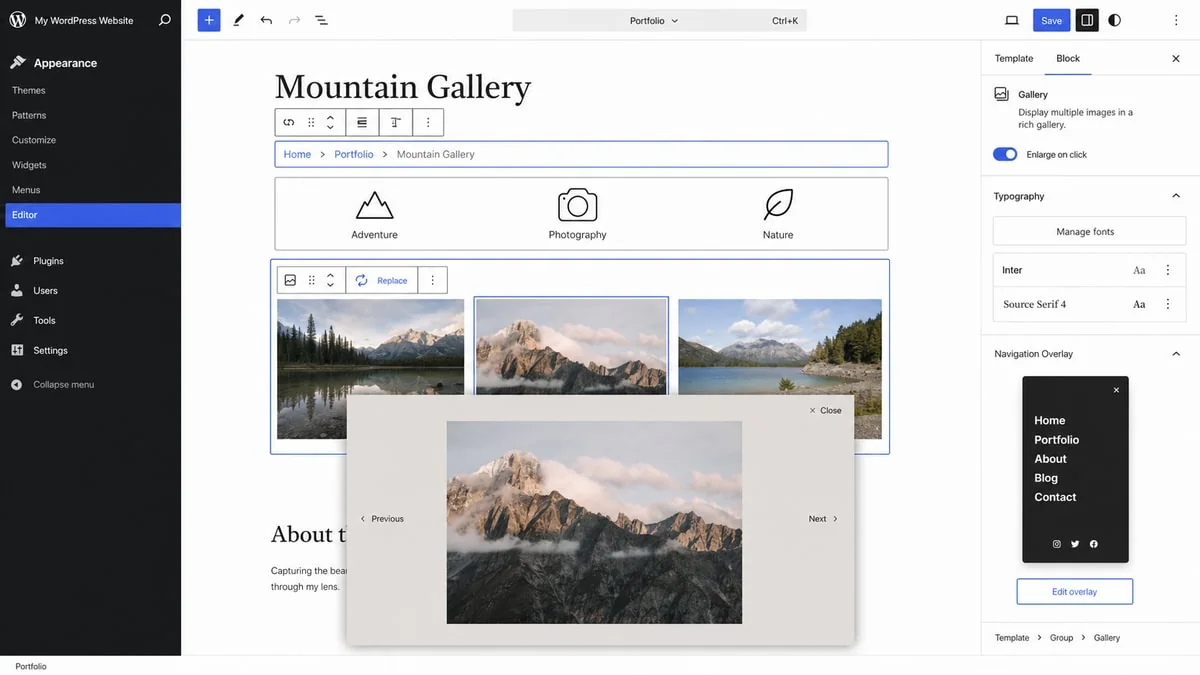
WordPress 7.0 extends the Gallery block with lightbox navigation. Visitors can open an image, move backward and forward, and use their keyboard arrow keys.
How to enable it
- Insert a Gallery block and choose your images.
- Select the Gallery block.
- Click the link control.
- Enable Enlarge on click.
- Publish or preview the page and test the slideshow.
Images that do not have the lightbox enabled are skipped during navigation.
What it can replace
For a blog post, portfolio preview, project gallery, or simple photo collection, this may replace a lightweight lightbox plugin.
Keep a gallery plugin when you need more
The native gallery is intentionally simple. A specialist plugin still makes sense for:
- Masonry layouts and advanced filters.
- Albums containing multiple galleries.
- Video and mixed-media galleries.
- Image zoom for product details.
- Password protection or downloads.
- Watermarking and photographer proofing.
- Ecommerce purchasing from a gallery.
6. Manage fonts from WordPress with more theme types
The Font Library first arrived in WordPress 6.5, but WordPress 7.0 makes it far more useful by providing a dedicated font management page for block, hybrid, and classic themes.
You can manage uploaded and installed fonts from one place instead of relying on a basic font plugin.
How to use the Font Library
- Open Appearance > Fonts.
- Upload a font file or install a font from an available collection.
- Activate the font family and the weights you actually need.
- Apply it through your theme’s typography or block controls.
- Check the front end to confirm the correct font files and fallbacks load.
Fonts installed through the library are stored with your WordPress site. This can help you avoid fetching fonts from an external provider, although you should still limit unnecessary families and weights.
What it can replace
This may replace a custom-font plugin if its only purpose is uploading a font and making it available in the block editor.
Page-builder users should check first
Elementor, Bricks, and other builders have their own typography systems. A font added to the WordPress Font Library may not automatically appear in every builder control.
Keep the builder’s font workflow or a dedicated optimization tool if you need font subsetting, conditional loading, builder-wide integration, or more control over exactly which files load on each page.
7. Design a custom mobile navigation overlay
In older versions of WordPress, the Navigation block’s mobile overlay had a mostly fixed design. WordPress 7.0 lets block-theme users build that full-screen menu with blocks and patterns.
Your overlay can contain:
- A vertical navigation menu.
- Your site logo.
- A search field.
- Social icons.
- A call-to-action button.
- Columns, headings, or supporting text.
- A custom-positioned Navigation Overlay Close block.
How to create one
- Go to Appearance > Editor and edit your header.
- Select the Navigation block.
- Open its Overlays controls.
- Create a new overlay or select one supplied by your theme.
- Build the overlay with blocks and add a Navigation Overlay Close block.
- Preview the menu at mobile size and test it with a keyboard.
What it can replace
For a block theme, this can replace a simple mobile-menu plugin whose only job is changing the full-screen hamburger menu layout.
Current limitations
WordPress 7.0 navigation overlays are full-screen. They are not side drawers, generic popups, or modal windows. Custom overlays are also tied to the active theme and are not currently preserved when you switch themes.
Use a dedicated menu plugin or your page builder if you need:
- A classic-theme integration.
- An off-canvas drawer rather than a full-screen menu.
- A desktop mega menu.
- Conditional menus for different users.
- Complex animation or dynamic content.
- The menu to move cleanly between themes.
Will replacing these plugins make WordPress faster?
Possibly, but plugin count alone is a poor performance measurement.
One well-built plugin can have almost no effect on the front end, while one badly built plugin can load large scripts and database queries across the entire site. Replacing a small plugin with a native WordPress feature reduces maintenance and compatibility risk, but it does not guarantee a better Core Web Vitals score.
Measure the result:
- Test the page before making the change.
- Replace one plugin feature at a time.
- Clear page, server, CDN, and browser caches.
- Test the same page again.
- Compare page weight, requests, layout shifts, and interaction.
The maintenance benefit can still be worthwhile even when the speed difference is small. Every removed dependency is one less update, compatibility check, and potential conflict.
Which plugins should you not remove?
WordPress 7.0 does not replace the important jobs handled by dedicated plugins for:
- Backups.
- Security and malware scanning.
- Caching and performance optimization.
- Forms and lead collection.
- Ecommerce.
- Search engine optimization.
- Redirect management.
- Spam protection.
Remove a plugin because you have replaced and tested its complete function, not because “fewer plugins” sounds better.
How to try these features safely
Before updating a business site:
- Confirm your host, theme, page builder, and critical plugins support WordPress 7.0.
- Create a current off-site backup.
- Clone the site to staging.
- Update plugins and the theme before WordPress core where appropriate.
- Update WordPress and clear all caches.
- Test templates, menus, galleries, forms, checkout, account pages, and mobile layouts.
- Introduce the native features one at a time.
WordPress 7.0 raises the minimum PHP version to 7.4. PHP 7.4 itself is no longer supported upstream, so use a currently supported PHP version offered by your host rather than treating the WordPress minimum as a recommendation.
Frequently asked questions
Does WordPress 7.0 eliminate the need for plugins?
No. It replaces a few basic jobs that previously needed small plugins or workarounds. Advanced features still belong in specialist plugins.
Do these features work with Elementor or Bricks?
Some do, but many are native Block Editor or Site Editor features. Elementor and Bricks use their own controls for responsive visibility, icons, typography, templates, and menus. The native tools are most useful when you build with WordPress blocks and a block theme.
Does hiding a block on mobile improve performance?
Not by itself. Viewport-hidden blocks remain in the HTML and are hidden with CSS. Use smaller media, responsive images, and proper performance tools when loading speed is the goal.
Can I remove Rank Math or Yoast after adding the Breadcrumbs block?
No. The Breadcrumbs block replaces only the visible trail. SEO plugins perform many other jobs, including metadata, sitemaps, canonical URLs, and structured data.
Do I need the Gutenberg plugin for these features?
No. The features covered here are included in WordPress 7.0 core. The Gutenberg plugin is for testing newer editor features before they reach a future WordPress release.
Can the Icons block use Font Awesome?
Not as a third-party collection in the initial WordPress 7.0 implementation. Use the built-in icons or keep your existing icon solution when you need Font Awesome, brand icons, or a custom library.
Is WordPress 7.0 safe to install?
WordPress 7.0 is a public stable release, but every production site has a different combination of themes and plugins. Back up and test on staging before updating an important website.
The practical verdict
WordPress 7.0 will not make a complex site plugin-free, and that should not be the goal. It does make WordPress more capable without add-ons.
Start by reviewing plugins that do only one small design job. A basic visibility plugin, icon block, lightbox, font uploader, breadcrumb block, or mobile-menu add-on may no longer be necessary. Replace one feature at a time, test carefully, and keep the specialist tools that still provide real value.
Need help deciding what is safe to remove? I can audit your WordPress setup, rebuild suitable features with native tools, and test the result without disrupting the live site. Start a WordPress project.