Manage Your WooCommerce Store by Chatting With AI
Connect Claude to your WooCommerce store and manage products and orders by chatting. A beginner-friendly guide to WooCommerce's new built-in AI tools.
WooCommerce now has built-in AI tools, so an assistant like Claude can work with your store directly. You tick one box to switch the feature on, create a key, connect Claude once, and then you can run your shop by typing plain requests: “list today’s orders,” “create a product,” “which items are low on stock?”
The technology behind it is called MCP (Model Context Protocol). You do not need to understand it. Think of it as a safe doorway that lets an AI app use a fixed set of store tools, and only the ones you switch on.
Good news on setup: you do not need to install any separate “MCP” plugin. WooCommerce already includes everything it needs.
What you can ask for
Once it is set up, you just type what you want. A few examples:
- “List my most recent orders and tell me which still need shipping.”
- “Create a product called Winter Hoodie for $39.99 and save it as a draft.”
- “Change the Demo Hoodie price to $34.99.”
- “Mark order #1234 as completed.”
- “Which products are low on stock?”
The tools cover your products and orders, the day-to-day of running a shop.
Before you start
- A self-hosted WordPress site with WooCommerce, where you log in as an Administrator.
- WooCommerce up to date (the official product and order tools arrive with WooCommerce 10.9).
- Your store on HTTPS (the padlock in the address bar).
- An AI app that supports MCP. I will use Claude Desktop.
Two of the three steps below are quick clicks in your dashboard. The only slightly technical part is connecting Claude in Step 3, and I will tell you how to have that done for you if you would rather skip it.
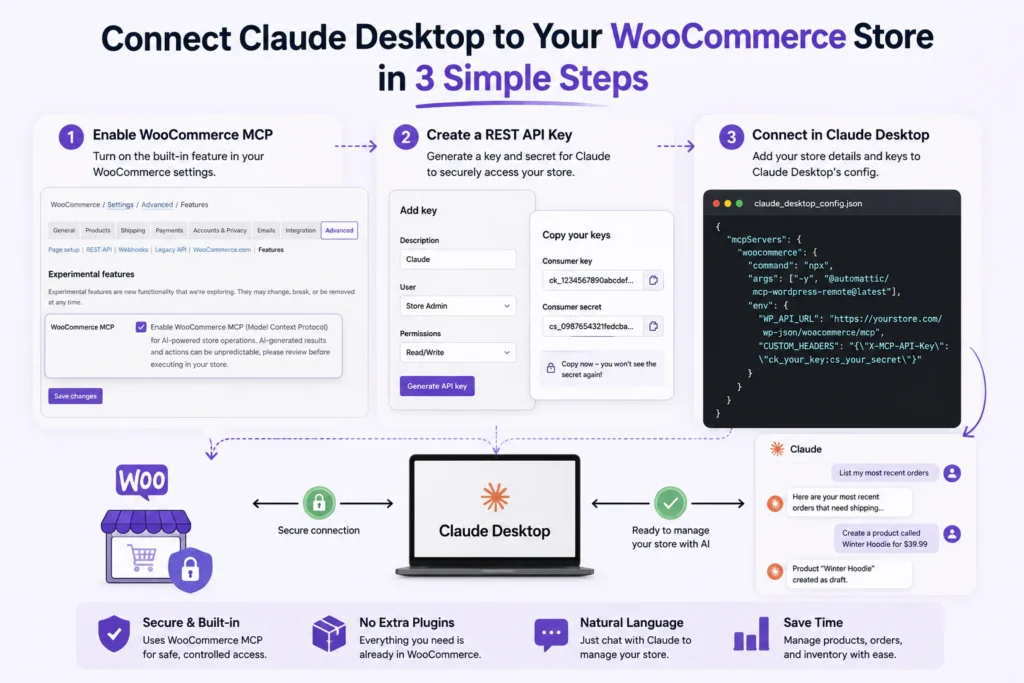
Step 1: turn on WooCommerce’s AI tools
There is nothing to install. The feature ships inside WooCommerce; you just switch it on.
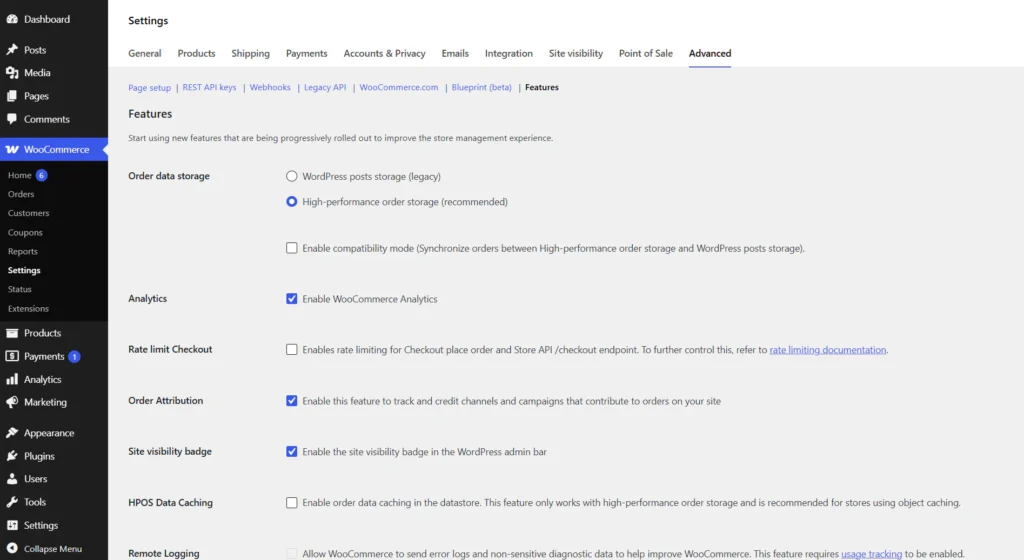
- In your dashboard go to WooCommerce, Settings, then open the Advanced tab and click Features.
- Scroll down to Experimental features, find WooCommerce MCP, and tick it. The description reads: “Enable WooCommerce MCP (Model Context Protocol) for AI-powered store operations. AI-generated results and actions can be unpredictable, please review before executing in your store.”
- Click Save changes.
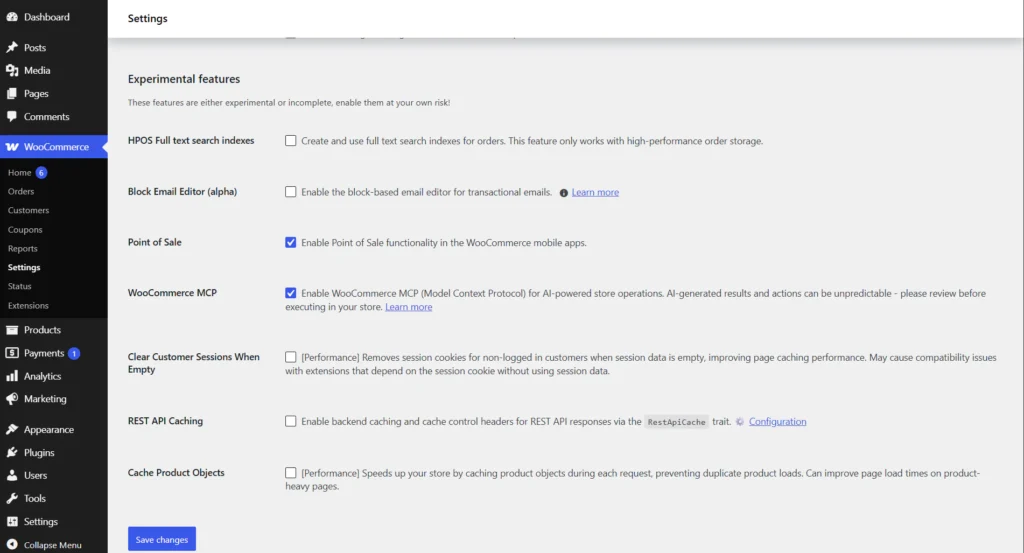
That is the feature on. If your version does not show the box yet, you can also enable it by running this command on your server (or ask your host or developer to):
wp option update woocommerce_feature_mcp_integration_enabled yesStep 2: create a key for your AI
Your AI app signs in to the store with a WooCommerce key.
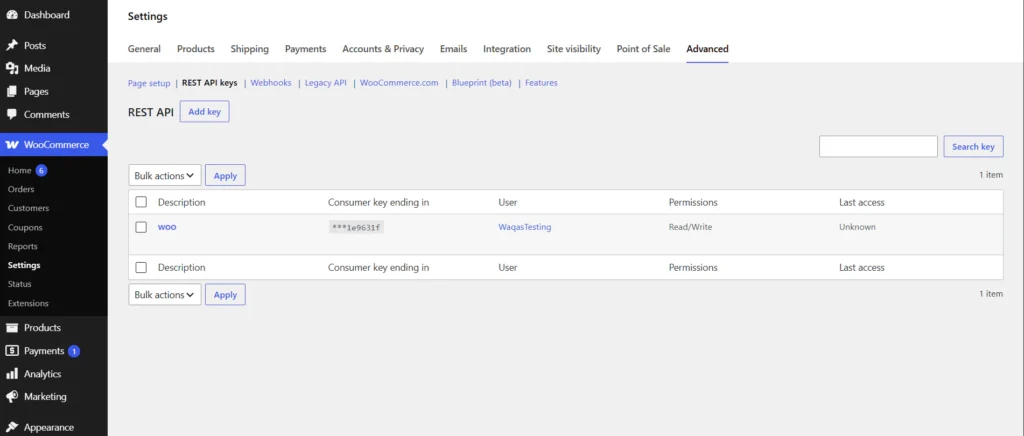
- Still under WooCommerce, Settings, Advanced, click REST API keys, then Add key.
- Give it a description like “Claude”, choose the user it acts as, and set Permissions to Read/Write (or Read-only if you only want it to look up orders and never change anything).
- Click Generate API key, then copy the Consumer key (starts with
ck_) and Consumer secret (starts withcs_) straight away. The secret is shown only once, so keep both somewhere safe like a password manager.
Step 3: connect Claude Desktop
This is the one slightly technical step, and it is a one-time job. If you would rather not touch a config file, skip to the end.
1. Open Claude Desktop, click the Claude menu, then Settings, Developer, Edit Config. That opens a file called claude_desktop_config.json.
2. Paste the block below, replacing your store address and your two keys. Be careful: this is plain text where a single missing comma or quote stops it working.
{
  "mcpServers": {
    "woocommerce": {
      "command": "npx",
      "args": ["-y", "@automattic/mcp-wordpress-remote@latest"],
      "env": {
        "WP_API_URL": "https://YOURSTORE.com/wp-json/woocommerce/mcp",
        "CUSTOM_HEADERS": "{"X-MCP-API-Key": "ck_your_key:cs_your_secret"}"
      }
    }
  }
}
3. Save the file, then fully quit Claude Desktop (use Quit, not just closing the window) and open it again.
4. This helper needs Node.js installed on your computer. If Claude reports an error, install the LTS version from nodejs.org, restart, and try again.
If you use Claude Code in a terminal instead of the desktop app, you can do the same with one command:
claude mcp add woocommerce --env WP_API_URL=https://YOURSTORE.com/wp-json/woocommerce/mcp --env CUSTOM_HEADERS='{"X-MCP-API-Key": "ck_your_key:cs_your_secret"}' -- npx -y @automattic/mcp-wordpress-remote@latestTo check it worked, start a chat and ask: “What can you do with my WooCommerce store?” It should list your store tools.
Step 4: everyday store tasks you can just ask for
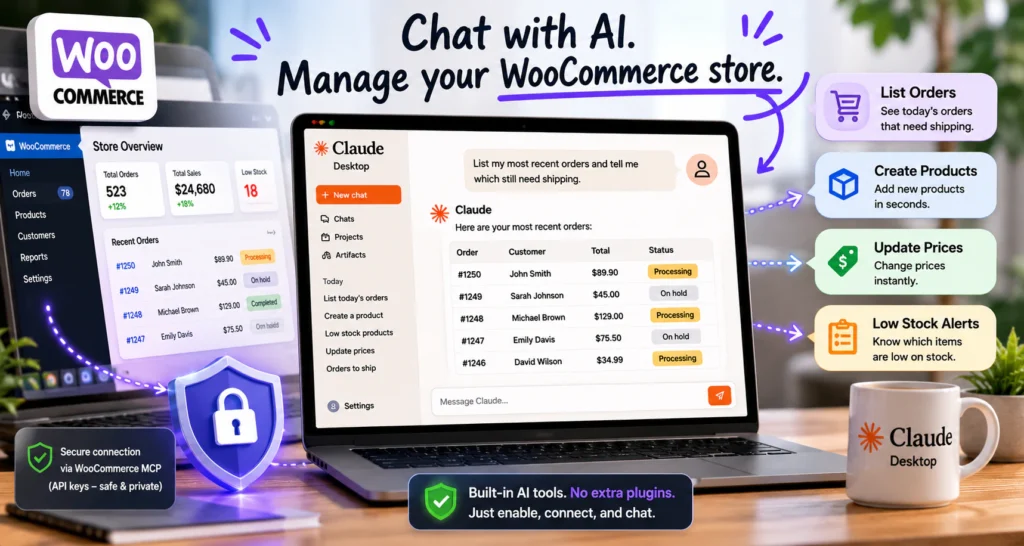
Now you simply ask. A few to try:
- “List my most recent orders and tell me which still need shipping.”
- “Create a product called Winter Hoodie for $39.99 and save it as a draft.”
- “Change the Demo Hoodie price to $34.99.”
- “Mark order #1234 as completed.”
- “Add a note to order #1290: customer asked for gift wrapping.”
- “Which products are low on stock so I know what to reorder?”
- “Read my last 20 orders and tell me my best-selling product this week.”
The built-in tools focus on products and orders. For a quick sales summary, ask the AI to read your recent orders and add them up for you.
Staying safe
WooCommerce puts it plainly on that settings screen: AI-generated results and actions can be unpredictable, so review them before they run in your store. A few habits keep it calm:
- Start Read-only. Let it look up and summarise before you let it change anything, then switch the key to Read/Write when you are comfortable.
- Ask for drafts. When it creates products, have it save them as drafts so nothing goes live without your review.
- Use a limited account. Tie the key to a user with only the access it needs, so it can never do more than that role allows.
- Keep your keys safe and revoke any you are not using from the REST API keys screen.
- Remember orders hold customer details, so treat that information responsibly.
You can switch the whole thing off any time by unticking the feature or revoking the key.
Honest limits right now
- WooCommerce’s AI tools are experimental (a developer preview), so expect changes as they mature, and test on a staging copy where you can.
- The tools focus on products and orders. Deeper extras (subscriptions, complex reports, and so on) come later or from add-ons.
- The AI works with your store data. It does not redesign your shop or touch your theme, plugins, or hosting.
Frequently asked questions
Do I need to install the MCP Adapter plugin?
No. WooCommerce bundles everything it needs, so there is no separate plugin to install. You just tick the feature on and connect your AI app.
Do I need to know how to code?
Turning the feature on and making a key are simple clicks. Connecting your AI app (Step 3) is a one-time technical step; someone can do it for you once and then you are set.
Does it cost anything?
WooCommerce’s AI tools are free. You only pay for whatever AI app you use.
Will it change my store without me knowing?
It can only act within the key’s permission level and the account it is tied to. Keep it Read-only or on a limited account until you trust it, and ask for drafts.
Can I use ChatGPT or another app instead of Claude?
Any app that supports MCP can connect in a similar way. Claude Desktop is just the simplest to start with.
Want us to set it up for you?
If connecting the AI is the part you would rather skip, that is exactly what I do. I switch on the right tools and connect your AI safely with the correct permissions, so all you have to do is chat with your store. See waqasdev.com or email [email protected].