WordPress MCP: Connect Claude to Your Site With the MCP Adapter Plugin
WordPress MCP made simple: install the free MCP Adapter plugin, create an application password, and connect Claude to your site, store, and SEO tools.
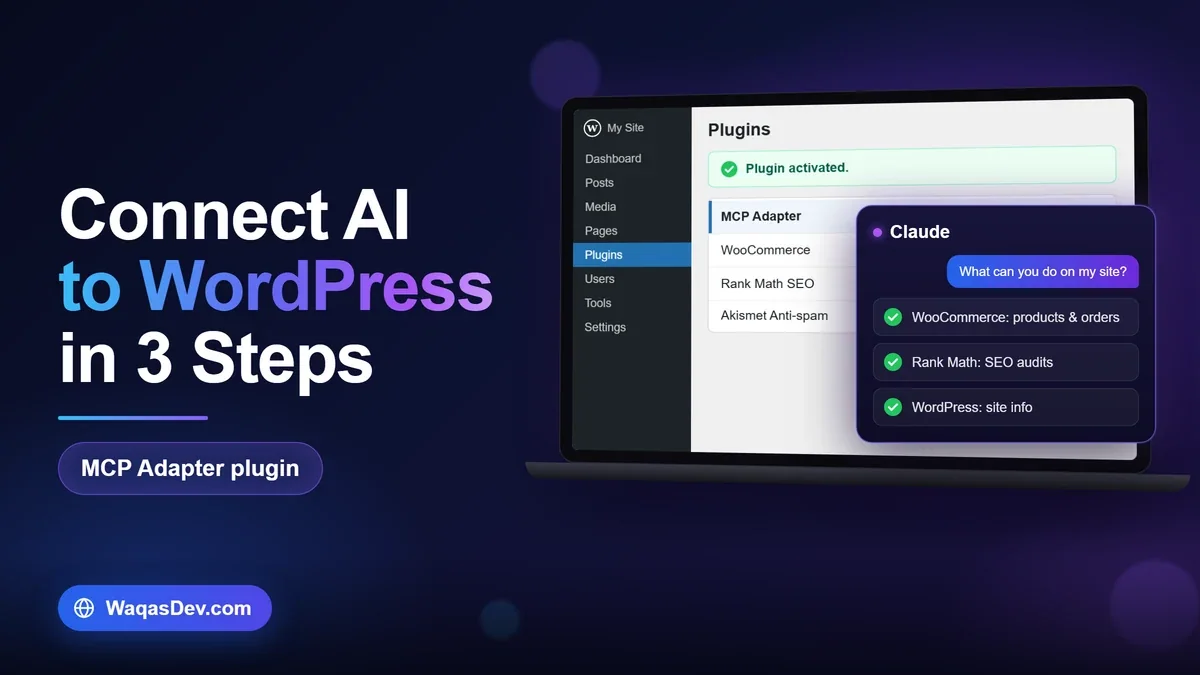
Quick summary: WordPress MCP lets an AI app like Claude work with your website directly. You install one free plugin called MCP Adapter, create an application password, and connect Claude once. After that you can type plain requests such as “audit my site’s SEO,” “list today’s orders,” or “which posts have no meta description?”
MCP stands for Model Context Protocol. You do not need to understand it. Think of it as a safe doorway that lets an AI app use a fixed set of tools on your site, signed in as a user you choose.
This changed recently, and for the better. In October 2026 the MCP Adapter became a regular plugin on WordPress.org, and the big plugins that used to carry their own copy are moving over to it. WooCommerce 11.3, due this month, retires its separate AI address, and current versions of Rank Math rely on the plugin too. So whichever tools you want your AI to reach, the setup is now the same three steps.
What the MCP Adapter plugin does
The MCP Adapter is an official plugin from the WordPress AI team. It connects WordPress’s built-in list of “abilities” (small, named actions such as “get site info” or “audit site SEO”) to AI apps that speak MCP.
- WordPress and your plugins supply the abilities. WordPress itself registers a few, and plugins like WooCommerce and Rank Math register their own.
- The MCP Adapter opens the doorway. It gives your site one address that AI apps connect to:
https://YOURSITE.com/wp-json/mcp/mcp-adapter-default-server. - Your AI app signs in as a real WordPress user, using an application password, so it can only do what that user is allowed to do.
The plugin is free, needs WordPress 6.9 or newer, and is already running on more than 70,000 sites.
What your AI can do depends on your plugins
The plugin itself adds no store or SEO features. It exposes the abilities your other plugins provide. Here is what that looks like with the plugins most of my clients use:
| Installed on your site | What you can ask for |
|---|---|
| WordPress (core) | Site details, your user profile, and environment info such as WordPress and PHP versions |
| WooCommerce | Find, create, update, and delete products; find orders, read and add order notes, change order status |
| Rank Math | Site-wide SEO audits and fixes, a post’s SEO title and description, SEO scores, link reports, Schema checks, top Search Console keywords, redirections, 404 logs, and SEO settings |
When I connected my own site this week, Claude found 42 abilities: three from WordPress itself and the rest from Rank Math. More plugins are adding abilities all the time, and they appear in the same connection automatically once they are active.
If you want the step-by-step for a specific plugin, I have two focused guides: manage your WooCommerce store by chatting with AI and check and fix your WordPress SEO with AI.
Before you start
- A self-hosted WordPress site (6.9 or newer, ideally the latest) where you log in as an Administrator.
- Your site on HTTPS, the padlock in the address bar. Your password travels to the site with every request, and HTTPS keeps it private.
- The plugins whose tools you want to use, kept up to date.
- An AI app that supports MCP. I will use Claude Desktop, and I also show the Claude Code command.
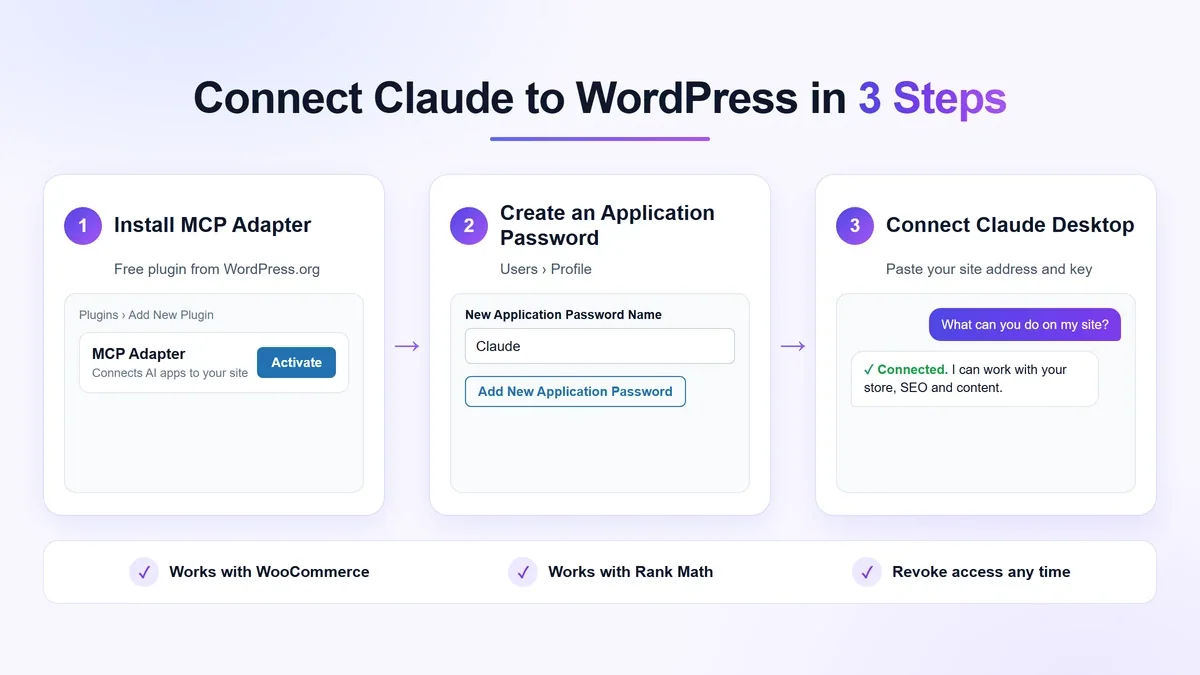
Step 1: install the MCP Adapter plugin
- In your dashboard, go to Plugins, Add New Plugin.
- Search for MCP Adapter, then click Install Now and Activate.
That is the whole step. There is no settings page to fill in. If you or your developer prefer the command line, it is one line:
wp plugin install mcp-adapter --activateStep 2: create an application password
Your AI app signs in with a WordPress application password. It is a separate key just for apps, and you can revoke it any time without changing your normal login.
- Go to Users, Profile and scroll down to Application Passwords.
- Type a name you will recognize, like “Claude”, and click Add New Application Password.
- Copy the password right away. It looks like
xxxx xxxx xxxx xxxx xxxx xxxx, and WordPress shows it only once, so keep it somewhere safe like a password manager.
You now have the three things Claude needs: your site address, your WordPress username, and this application password.
Step 3: connect Claude
Claude Desktop
- Open Claude Desktop, click the Claude menu, then Settings, Developer, Edit Config. That opens a file called
claude_desktop_config.json. - Paste the block below and replace the site address, username, and application password with your own. Copy it carefully: a single missing comma or quote stops it working.
{
  "mcpServers": {
    "wordpress": {
      "command": "npx",
      "args": ["-y", "@automattic/mcp-wordpress-remote@latest"],
      "env": {
        "WP_API_URL": "https://YOURSITE.com/wp-json/mcp/mcp-adapter-default-server",
        "WP_API_USERNAME": "your-wordpress-username",
        "WP_API_PASSWORD": "the application password you just copied"
      }
    }
  }
}- Save the file, fully quit Claude Desktop (use Quit, not just the close button), and open it again.
- The small helper in that block runs on Node.js. If Claude shows an error, install the LTS version from nodejs.org, restart your computer, and try again.
Claude Code
If you use Claude Code in a terminal, one command does the same job:
claude mcp add wordpress --env WP_API_URL=https://YOURSITE.com/wp-json/mcp/mcp-adapter-default-server --env WP_API_USERNAME=your-wordpress-username --env WP_API_PASSWORD="the application password" -- npx -y @automattic/mcp-wordpress-remote@latestOther apps that use the same mcpServers format, such as Cursor, connect with the same block.
Check that it worked
Start a new chat and ask: “What can you do on my site?” Claude looks up the abilities your site offers and lists them in plain words.
You may notice that Claude’s own tool list shows three general helpers instead of one tool per task: one to discover abilities, one to read an ability’s details, and one to run it. That is normal. Claude uses those three to reach every ability on your site.
What a first session looks like
Once connected, you just ask. A few good first requests:
- “Tell me my WordPress and PHP versions.”
- “Run an SEO audit of my site and list what’s failing.” (with Rank Math)
- “Which of my published posts have no meta description?” (with Rank Math)
- “List my five most recent orders and which ones still need shipping.” (with WooCommerce)
- “Create a product called Winter Hoodie for $39.99 and save it as a draft.” (with WooCommerce)
I suggest starting with questions that only read information. Watch how Claude answers, then move on to changes once you are comfortable.
Staying safe
A connection that can change your site deserves a few habits:
- Remember the key has your permissions. An application password can do everything its user can do. For day-to-day work, consider a separate WordPress user with a lower role, such as Shop manager for a store or Editor for a blog, and check that the tasks you need still work.
- Know what is exposed. Ask Claude to list every ability on your site before you rely on it. Some plugins add powerful ones. On my site, Rank Math’s connection includes abilities that can install, activate, or delete plugins from its marketplace.
- Ask to see changes first. Tell Claude to list each change and wait for your yes before it applies anything. Ask for new products and posts as drafts.
- Treat store data with care. Order tools can show customer names and addresses, so connect only apps and accounts you trust.
- Switch it off in seconds. Revoke the application password, or deactivate the MCP Adapter plugin, and the doorway closes.
If you are tightening your site more generally, my WordPress security checklist covers application passwords and connected services too.
If it does not connect
- “Unauthorized” or a 401 error. The username or application password is wrong. Create a fresh application password and paste it again, spaces and all.
- “No route was found” or a 404 error. The MCP Adapter plugin is not active, or the address has a typo. Check Plugins and compare the address with the one in Step 3.
- An old WooCommerce address. If your config still says
/wp-json/woocommerce/mcp, it is from the older setup that WooCommerce 11.3 retires. Swap it for the address in Step 3 and use an application password instead of a REST API key. - Claude shows an error on startup. Install Node.js (see Step 3), then fully quit and reopen Claude Desktop.
Frequently asked questions
Is the MCP Adapter plugin safe to install?
It comes from the WordPress AI team and is listed on WordPress.org. On its own it adds a single address that only answers signed-in users, and every action still goes through WordPress’s normal permission checks.
Do I need WooCommerce or Rank Math?
No. WordPress gives you a few basic abilities on its own. Store and SEO tools appear when those plugins are active.
I used the older WooCommerce checkbox and REST API key. What do I change?
Install the MCP Adapter plugin, create an application password, and update your config to the address and three settings shown in Step 3. Then revoke the old REST API key under WooCommerce, Settings, Advanced, REST API.
I read about a tool called mcp-remote. Should I use it?
Use the helper shown in Step 3 instead. mcp-remote expects an OAuth sign-in, while this connection signs in with your username and application password.
Does it cost anything?
The MCP Adapter plugin is free. You pay only for your AI app, plus any paid plugin features you choose to use.
Want me to set it up for you?
If you would rather skip the config file, that is exactly what I do. I install the plugin, set up a safe account with the right permissions, connect your AI app, and walk you through your first requests. See waqasdev.com/automation or email [email protected].