How to Update PHP in WordPress Safely (Without Breaking Your Site)
Learn how to update PHP in WordPress safely: check your version in Site Health, pick the right one, test on staging, switch at your host, and roll back fast.
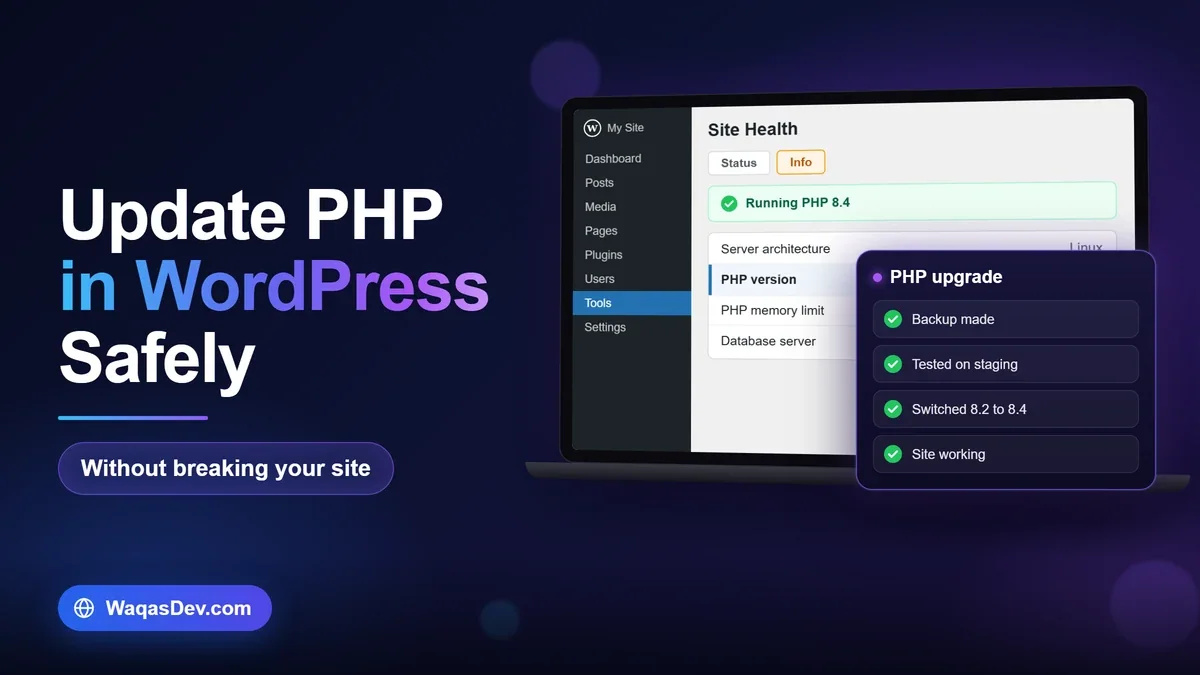
Most site owners never look at their PHP version until WordPress puts a warning on the dashboard. The switch itself takes a few clicks, and the real work happens before and after it.
This guide shows you how to update PHP in WordPress the safe way: check your version, pick the right one, test it on a copy of your site, switch at your host, and roll back quickly if anything looks off. I run waqasdev.com on PHP 8.4, and every PHP change I make goes to a staging copy first.
What PHP is and why your version matters
PHP is the programming language WordPress is written in. It runs on your web server, and every time someone opens a page, PHP builds it from your theme, plugins, and database. Your hosting account decides which PHP version runs.
Each PHP version gets security fixes for a limited time and then reaches end of life. PHP 8.1 reached that point on December 31, 2025, and PHP 8.2 follows on December 31, 2026. After that date, any new security hole found in that version stays open.
October showed what that means in practice. On October 21, 2026, the PHP project released fixes for two critical vulnerabilities that could allow unauthenticated remote code execution. The fixes shipped for PHP 8.2, 8.3, 8.4, and 8.5 only. Keeping PHP current is on my WordPress security checklist for exactly this reason.
There’s a speed upside as well. WordPress’s own documentation says newer PHP versions are built with performance in mind, so your site may get a little faster after the move. If speed is your main goal, pair the update with the fixes in my Core Web Vitals guide.
How to check your WordPress PHP version
WordPress shows your PHP version in its built-in Site Health tool.
- Log in to your WordPress dashboard.
- Go to Tools > Site Health.
- Click the Info tab.
- Open the Server section.
- Read the PHP version row.
The Copy site info to clipboard button on the same screen is handy when you ask your host or a developer for help.
If you run WooCommerce, you’ll also find the version under WooCommerce > Status, in the Server environment section. A dashboard box titled PHP Update Recommended or PHP Update Required is WordPress telling you it’s time for this job.
Which PHP version to choose in November 2026
WordPress.org recommends PHP 8.3 or greater. WordPress 7.1, released on August 19, 2026, is fully compatible with every version from PHP 7.4 to 8.5, and the WordPress hosting team suggests PHP 8.4 or 8.5 for new installs. Here’s where each version stands, using php.net’s dates:
| PHP version | Security fixes until | My take |
|---|---|---|
| 8.1 and older | Already ended | Move off it soon |
| 8.2 | December 31, 2026 | A short stop at best |
| 8.3 | December 31, 2027 | Good, and WordPress’s recommended minimum |
| 8.4 | December 31, 2028 | My pick for most sites |
| 8.5 | December 31, 2029 | Good once your plugins confirm support |
Aim for PHP 8.4 if your plugins and theme support it. It gets security fixes until the end of 2028, WordPress has fully supported it since version 6.8, and it’s what this site runs on. Choose 8.3 if a plugin you depend on hasn’t confirmed 8.4 yet.
PHP 8.6 is planned for November 19, 2026. Give plugin and theme authors a few months to catch up before you move a live site to a brand-new release.
Coming from PHP 7.4 or 8.0 is a bigger jump. PHP 8.0 turned a number of old warnings into hard errors, so older, rarely updated plugins are the ones most likely to trip. Give the staging test below extra attention.
Why WooCommerce stores should act now
WooCommerce 11.6, planned for February 2027, will require PHP 8.1 or newer, and WooCommerce recommends PHP 8.3 or newer.
The reminders start earlier. WooCommerce 11.3, scheduled for the week of November 9, 2026, adds a dismissible admin notice for stores running PHP 7.4 or 8.0. The notice shows your current PHP version and suggests contacting your host. Your store keeps working on 11.3, so treat the notice as a heads-up.
Stores on older PHP can keep updating up to WooCommerce 11.5, the last planned release for PHP 7.4 and 8.0. WooCommerce calls staying there a temporary option, because older releases only get backported fixes for the most severe vulnerabilities, for a limited window.
Two practical points for store owners:
- PHP 8.1 meets the WooCommerce 11.6 minimum, but PHP 8.1 itself stopped getting security fixes at the end of 2025. Going straight to 8.3 or 8.4 saves you a second upgrade later.
- WooCommerce set the deadline for February so stores can test after the busy season. If you’re in the middle of holiday sales, run the staging test now and switch the live store in a quieter week.
For more on keeping a shop healthy, read my lessons from running a WooCommerce store.
How to update PHP in WordPress step by step
Set aside an hour on a quiet day. Most of that time goes into testing.
Step 1: back up your site
Take a full backup of your files and database, keep a copy off your web server, and make sure you know how to restore it. My guide on how to back up a WordPress site walks you through it.
Step 2: update WordPress, plugins, and your theme
Plugin and theme updates often include PHP compatibility fixes. Go to Dashboard > Updates, install everything, and check that the site works before you touch PHP.
Step 3: check plugin and theme compatibility
For every active plugin, open its page on WordPress.org and look at three things:
- PHP version in the sidebar. This is the minimum version the plugin needs.
- Last updated. A plugin updated in the past few months is far more likely to run well on new PHP than one that hasn’t changed in years.
- The plugin’s changelog. Search it for “PHP 8.4”, or whichever version you’re moving to.
The Tested up to line refers to the WordPress version, not PHP. It still tells you the author is active. For premium plugins and themes, check the vendor’s changelog or ask their support a direct question: “Is your current version compatible with PHP 8.4?”
Step 4: test on a staging copy
A staging site is a private copy of your site where you can try changes safely. Create one, switch only the staging copy to the new PHP version, and run the checks from Step 6 there. My WordPress staging site guide shows you how to set one up, and many hosts include one-click staging.
Step 5: switch the PHP version at your host
Write down your current PHP version first. You’ll need it if you roll back. Then:
- Log in to your hosting control panel.
- Find the PHP screen. Hosts name it differently, so look for PHP version, PHP configuration, or PHP settings. On cPanel it’s called MultiPHP Manager.
- Select the website or domain you’re updating.
- Choose the new version, then save or apply the change.
Some hosts handle this through support instead. A short message is enough: “Please switch example.com to PHP 8.4. I’ve tested it on staging.”
Step 6: test the pages that matter
Open the site in a private browser window and work through this list:
- Your homepage, a few posts and pages, and the main menu.
- Every contact or booking form. Send a test entry and confirm the email arrives.
- The dashboard, plus the editor or page builder you use.
- For stores: add a product to the cart, place a test order, and check payment, shipping, tax, and order emails. Also open WooCommerce > Status > Scheduled Actions and look for failed jobs.
Then go back to Tools > Site Health > Info > Server and confirm the new version shows.
Step 7: watch for errors for a few days
Some problems only appear on a weekly scheduled task or a rarely visited page. For the next few days, check the Status tab in Site Health and the error log in your hosting control panel. On a store, also look under WooCommerce > Status > Logs for a log named fatal-errors.
How to roll back if something breaks
Rolling back usually takes a minute or two. Open the same PHP screen in your control panel, choose the version you wrote down, and save. Switching PHP versions leaves your files and database as they were, so going back clears most problems right away, and you can fix the cause on staging at your own pace.
If a plugin or theme causes a fatal error, visitors see the message “There has been a critical error on this website.” WordPress has a built-in safety net for this called recovery mode:
- WordPress emails your site’s administration email address. The subject starts with your site name, followed by “Your Site is Experiencing a Technical Issue”.
- The email names the plugin or theme that caused the error and includes a special login link. By default, that link stays valid for one day.
- Use the link to log in. Recovery mode pauses the broken plugin for you, so the dashboard loads.
- Go to Plugins, deactivate the plugin named in the email, and click Exit Recovery Mode in the top toolbar.
That email goes to the address under Settings > General > Administration Email Address, so make sure it’s an inbox you read.
If the email never arrives, open your host’s file manager, go to the wp-content/plugins folder, and rename the problem plugin’s folder, for example by adding -off to the end. WordPress deactivates a plugin when it can’t find its files. Then send the plugin author the error details, or swap the plugin for an actively maintained one.
Frequently asked questions
Will updating PHP break my WordPress site?
Usually not, when your plugins and theme are up to date. Trouble tends to come from old or abandoned plugins. Staging shows you any problem before visitors see it, and switching back is quick.
Can I update PHP from inside the WordPress dashboard?
WordPress shows your PHP version, and the change itself happens on the server. You make it in your hosting control panel or by asking your host.
How often should I update PHP?
Check once a year. PHP ships a new version near the end of each year, and each one gets security fixes for about four years, so moving every year or two keeps you well covered. Small point releases, such as 8.4.26 to 8.4.27, carry security fixes too, so ask your host whether they install those for you.
Which PHP version does WooCommerce need?
Today it runs on PHP 7.4 and newer. From WooCommerce 11.6, planned for February 2027, it needs PHP 8.1 or newer. WooCommerce recommends 8.3 or newer.
Want me to handle the upgrade?
If you’d rather hand this job off, I can do it for you. I’ll back up your site, set up a staging copy, test your plugins, forms, and checkout on the new PHP version, and then switch the live site on a quiet day. Email me at [[email protected]](mailto:[email protected]) with your site address and the PHP version Site Health shows.
Sources
- WordPress requirements (wordpress.org)
- Update PHP (wordpress.org)
- Site Health screen (WordPress documentation)
- WordPress 7.1 server compatibility (WordPress hosting handbook)
- PHP support clarification, spring 2026 edition (make.wordpress.org)
- How your readme.txt works (WordPress plugin handbook)
- Supported versions (php.net)
- Unsupported branches (php.net)
- PHP news archive 2026 (php.net)
- PHP 8.0 backward incompatible changes (php.net)
- New requirement for WooCommerce 11.6: PHP 8.1+ (WooCommerce developer blog)
- WooCommerce 11.3: what’s coming for developers (WooCommerce developer blog)
- Critical security releases for PHP (WooCommerce developer blog)
- MultiPHP Manager for cPanel (cPanel docs)