Hermes Agent + WordPress: Control Your Entire Site and Store with AI
Use Hermes Agent, the free AI agent from Nous Research, to manage your whole WordPress site and WooCommerce store, with honest setup, cost, and safety tips.
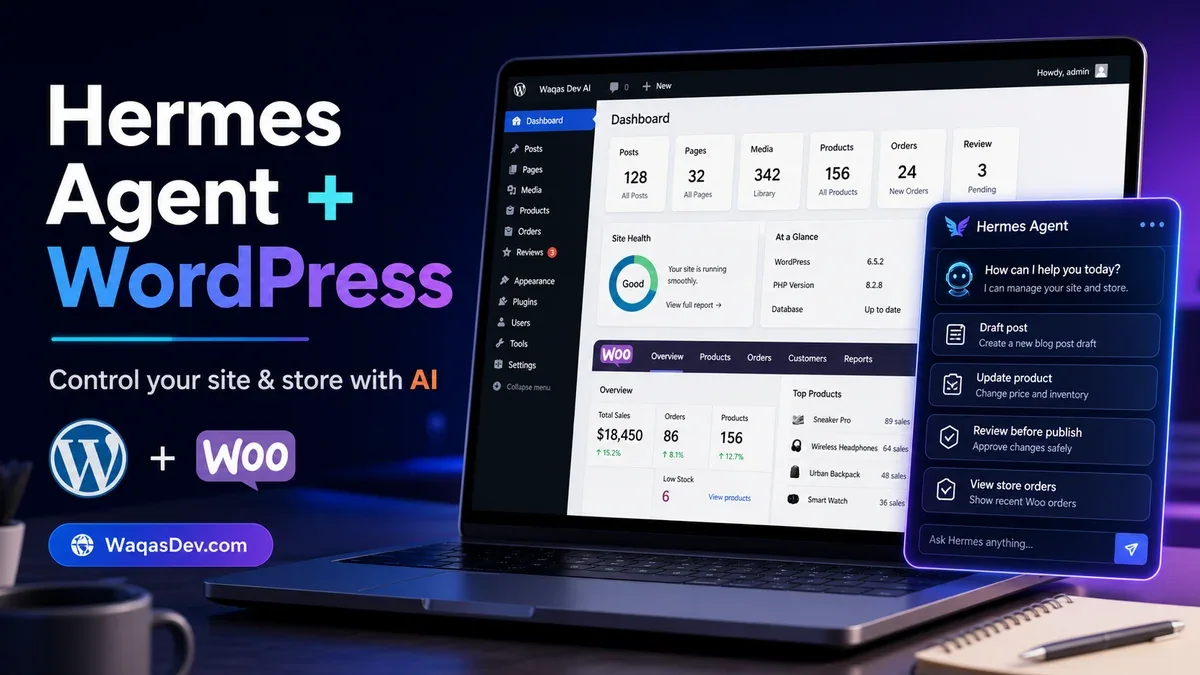
Hermes Agent is a free, open-source AI agent from Nous Research that runs on your own computer or server. Connect it to WordPress and it becomes a hands-on assistant for your entire site: it can write and edit posts and pages, organize categories and tags, manage your media library, and, with a store connector added, work on your WooCommerce products and orders, all from plain-language requests.
This guide walks through the whole setup: install the new desktop app, pick the AI model that powers it, create a secure connection to WordPress, and put Hermes to work on real tasks, from blog posts to store management. It also covers what Hermes can reach (and what needs an extra connector), the real costs, and the safety habits that keep an automated workflow from going wrong.
What Hermes Agent is
Hermes Agent is an autonomous AI agent released by Nous Research in February 2026. Its tagline is “the agent that grows with you,” and the idea behind it is a learning loop: it remembers what you worked on across sessions and writes reusable “skills” for jobs it does often, so it gets more useful the longer you use it.
Two things make it different from a chatbot in a browser tab:
- It runs where you put it. Hermes lives on your own machine or a server you control, not on someone else’s website. The code is open source under the MIT license, so the app itself is free.
- It can take actions for you. Through small add-ons called skills and MCP connections, Hermes can carry out multi-step jobs inside other tools. WordPress is one of those tools.
One point to set straight early: Hermes is not a WordPress plugin, and it is not a model in its own right. It reaches your site from the outside, and it needs a separate AI model to do the thinking. Both of those are easy to set up, and we cover them below.
Why Hermes Agent matters right now
For most of its life, Hermes ran in a terminal, which kept it in the hands of developers. That changed this month. Nous Research shipped Hermes Desktop as a public preview on June 2, 2026, and the first stable version that bundles it, v0.16.0 (“The Surface Release”), landed on June 5. You can now install it like any normal Mac or Windows program.
It also arrived with momentum. Hermes is one of the fastest-growing open-source AI agents of 2026, with around 190,000 GitHub stars by mid-June. The desktop release pairs that reach with the feature people actually want from an assistant: memory that carries from one session to the next, so you stop re-explaining your site, your tone, and your topics every time.
The timing lines up with WordPress too. WordPress 7.0 (May 20, 2026) added its own built-in AI plumbing, so site owners are now weighing two approaches: AI features that live inside WordPress, and an agent like Hermes that drives WordPress from the outside. There is a section on that comparison later in this guide.
What you will need
Gather these before you start:
- A computer running macOS 12 or newer, or Windows 10 or 11. Linux works too, but it installs through the terminal rather than a graphical installer.
- A WordPress site you administer, served over HTTPS.
- Admin access to create an application password in WordPress.
- An AI model provider for Hermes to use. Hermes does the orchestrating; the model does the writing. You will choose one in the next section.
- A little patience for first-time setup: installing an app, copying one secure key, and connecting the two.
- For work beyond the blog, such as your WooCommerce store or page building, the matching skill or MCP connector for that area. You switch these on inside Hermes as you need them.
- Optional, only if you want Hermes to post on a schedule without you present: a small always-on server.
A normal laptop is enough. You do not need a powerful graphics card unless you decide to run a free AI model on your own machine, because the thinking usually happens through a cloud model you connect to.
Choose the AI model that powers Hermes
Hermes is model-agnostic, which means you pick the “brain” and can switch it later. The app is free; this is the part that may cost money. Here are the practical options, cheapest first:
- Reuse a subscription you already pay for. Hermes can connect to OpenAI’s Codex using your ChatGPT plan through a secure sign-in, so the usage comes out of that subscription with no extra API key and no per-message bill. A ChatGPT Plus plan is around $20 a month, and many people already have one.
- Nous Portal. This is the provider Nous Research recommends. One sign-in gives Hermes access to many models plus built-in tools. There is a free tier for testing and a paid tier at roughly $20 a month.
- Pay-as-you-go API key. Paste a key from a provider such as OpenAI, Anthropic, Google Gemini, OpenRouter (the option Hermes uses by default), or others. A budget model bills by usage and often costs only a few dollars a month for light blogging.
- Run a free model on your own PC. Local engines like Ollama or LM Studio can power Hermes at no ongoing cost beyond electricity. This needs a capable machine, roughly 16 GB of RAM and a decent graphics card for smaller models, and a bit of configuration.
You connect a provider when you first open the app, and you can change it any time. Power users can also switch with the hermes model command.
Step 1: Install the Hermes desktop app
Go to the official Hermes Agent website at hermes-agent.nousresearch.com and click Install desktop app. On the download cards, pick your system and press Download: you get a .exe for Windows 10 or 11, or a .dmg for macOS 12 and newer. (On Linux, run the one-line terminal command shown on the same page.) Double-click the downloaded file and install it the same way you would any other app.
The first launch may trigger a security prompt because the app is new:
- On Windows, if you see “Windows protected your PC,” click More info, then Run anyway.
- On Mac, if it says the developer cannot be verified, right-click the app, choose Open, then confirm.
When Hermes opens, it asks you to connect the model provider you chose in the previous section. Sign in or paste your key, then send a quick test message to confirm it replies.
One honest note: the desktop app is a public preview. It is genuinely usable, and expect the occasional rough edge while it matures.
Step 2: Create an application password in WordPress
You will not hand Hermes your real WordPress password. Instead you create an application password, a separate key meant for apps, which you can revoke any time without changing your login. This has been built into WordPress since version 5.6.
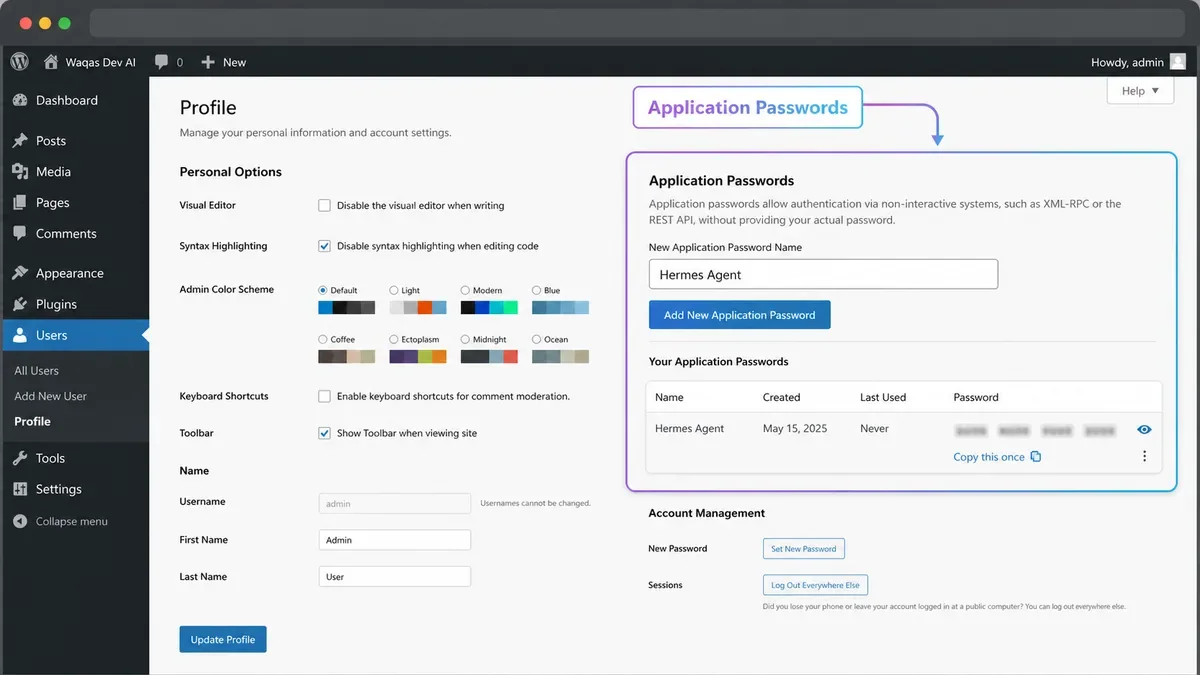
Here is how:
- Log in to your WordPress admin and open Users > Profile (your own profile).
- Scroll to the Application Passwords section.
- Type a name you will recognize, such as
Hermes Agent. - Click Add New Application Password.
- Copy the generated password right away. WordPress shows it only once.
Keep three things handy for the next step: your site URL, your WordPress username, and the application password you just copied.
Step 3: Connect Hermes to your WordPress site
Hermes talks to WordPress through the site’s built-in REST API, using the application password to sign in. The smoothest way to wire that up is a community-built WordPress skill for Hermes.
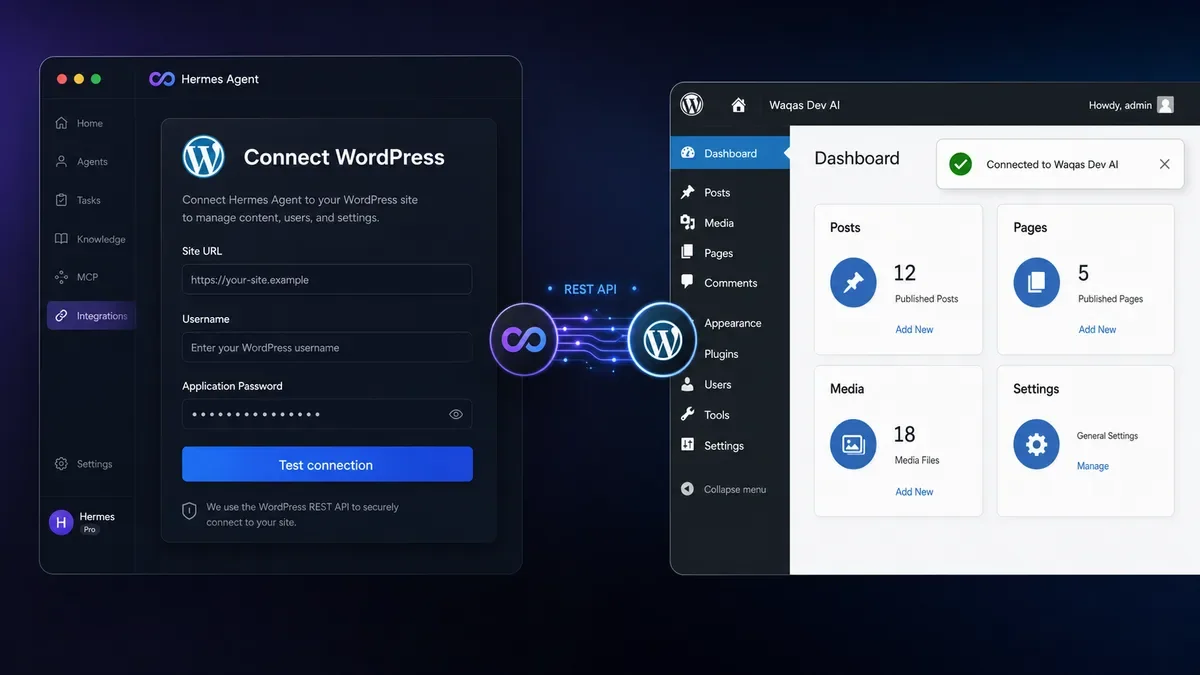
- Add the WordPress skill to Hermes and load it.
- Tell Hermes, in plain language, to set up your WordPress site.
- When it asks, paste your site URL, WordPress username, and the application password.
Hermes stores those details and can install any small free helper plugin the connection needs. Ask it to confirm it can see your site as a quick test, for example: “Check that you’re connected to my WordPress site and tell me how many published posts I have.”
Once connected, Hermes can do much more than write first drafts:
- Create and format new posts and pages (headings, lists, tables, quotes, and code blocks).
- Edit and update existing content (rewrite sections, fix formatting, refresh old posts).
- Set and change categories and tags, including tidying up older posts.
- Manage your media library and set a post’s featured image.
- Adjust site settings within your account’s permissions, and publish or schedule content once you are happy with it.
A few things to keep in mind so you set the right expectations:
- The basic connection writes clean HTML. Building visual page-builder layouts, for example in Elementor, is possible too, but it needs the matching skill added to Hermes.
- Adding a brand-new image happens through an upload step from a file or a public URL, rather than dragging a picture in by hand.
- Each area of your site uses the skill or connector that covers it, so you add capabilities as you need them. The store and other areas come next.
If you prefer not to use the community skill, a more technical alternative is to enter the same three values into Hermes’ settings directly.
Step 4: Put Hermes to work
You ask in plain language, and Hermes handles the WordPress side. Writing a new post is the obvious first job:
Draft a new WordPress post titled "Best Ways to Speed Up a Slow Website" about practical, beginner-friendly fixes. Use clear headings and a bullet list, write a short intro, set the category to Tutorials, add the tags speed, performance, and beginners, and save it as a DRAFT. Do not publish it.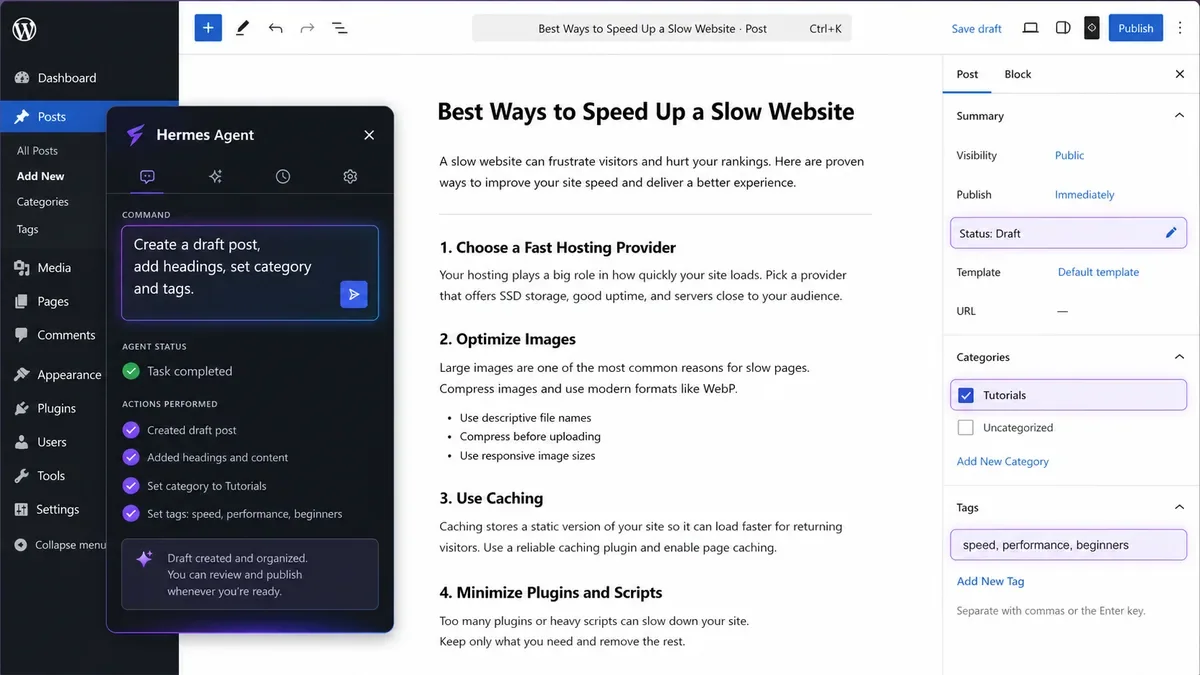
Writing is only the start. Once connected, Hermes can also handle the everyday jobs that usually eat your time:
- Improve an existing post: “Open my post ‘Slow Website Fixes’, add a short summary at the top, fix the heading order, and refresh the tags.”
- Reorganize content: “Find my posts in the News category from last year and add the tag archive.”
- Set a featured image: “Set the featured image on my latest draft to the cover image already in my media library.”
- Clean up formatting: “Reformat this post with proper headings and a bullet list, and flag any links that look broken.”
Keep one rule no matter the task: have Hermes save new posts as drafts and ask before publishing, then review before anything goes live. When it edits an existing post, WordPress keeps the previous version as a revision, so you can compare the change and roll back if something looks off.
To review, open Posts in WordPress and do the part only a person can do well:
- Read it end to end and check every fact.
- Adjust anything that does not sound like you.
- Confirm the structure, links, and formatting.
- Set or confirm the featured image.
When you are happy, publish or schedule it yourself.
Beyond the blog: your whole site and WooCommerce store
The blog is where most people start, and it is the easiest area to connect. The same approach reaches the rest of your site.
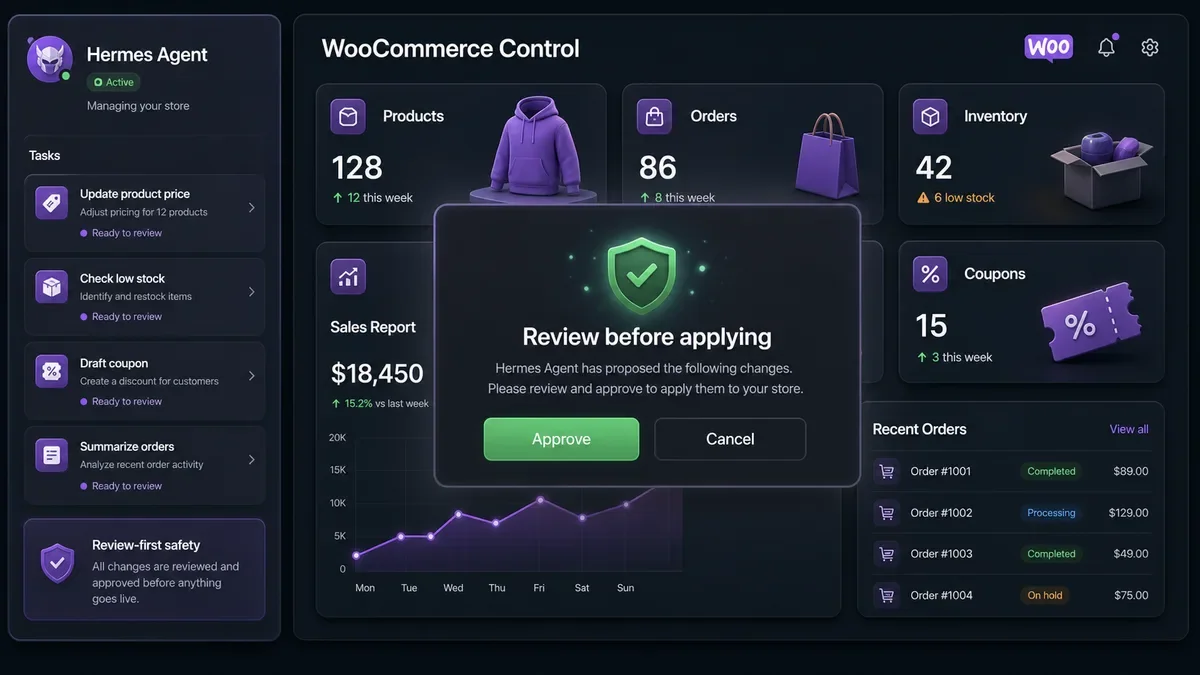
Hermes adds new abilities through skills and MCP connectors, small add-ons you switch on inside the app. Each one teaches Hermes how to handle a different part of WordPress:
- Pages, media, and design. Beyond posts, the WordPress skill can create and edit pages, manage your media library, and adjust settings. A page-builder skill (for example for Elementor) can build layouts, apply templates, and update site-wide colors and fonts.
- Your WooCommerce store. Add a WooCommerce connector and Hermes can work with your shop: search, add, and update products, change pricing and stock, create and manage orders, apply coupons, and pull simple sales reports. WooCommerce now offers its own connector for AI assistants, and several community options exist.
- Other tools. Because Hermes speaks the open MCP standard, it can connect to many other WordPress and outside services the same way, so the assistant grows with your site.
One caution matters more here than anywhere else: store actions touch real money and real customers. Keep Hermes in a review-first mode for anything that changes prices, stock, orders, or refunds, and leave the approval prompts on so you sign off before a change goes live. Connect one area at a time, try it on low-risk tasks first, and widen its reach as you come to trust it.
Let Hermes schedule posts
Hermes can also post on a timetable, which is where the “schedule” part of this guide comes in. There are two common routes:
- Connect a content scheduler. Tools that hold your WordPress connection can take a finished post from Hermes and publish it at a chosen date and time. The makers of these tools generally recommend keeping a person in the loop, and that is sound advice.
- Run a recurring job on an always-on server. If Hermes lives on a small server that stays on around the clock, it can wake up on a schedule, write a post, and publish or queue it. This is the more technical path and the reason the “server” requirement is optional rather than essential.
For a personal blog, you usually do not need any of this. Drafting plus your own review covers most needs and keeps quality high. Reach for scheduling once you trust the output and want to remove yourself from the routine parts.
What it costs
The honest split is easy to remember: the software is free, the model is the cost.
- Hermes Agent itself: free and open source. You never pay for the app.
- Reusing a subscription: around $20 a month for a plan like ChatGPT Plus, which adds no per-message charge when connected through Codex.
- Nous Portal: a free tier for testing, and a paid tier around $20 a month for access to many models.
- Pay-as-you-go API: often just a few dollars a month for light blogging.
- A local model: no ongoing fee beyond electricity, if you have a capable PC.
- Always-on scheduling: add a small server, roughly $4 to $25 a month, only if you want hands-off posting. Managed and one-click hosting options for Hermes are also starting to appear if you would rather not run a server yourself.
For a blogger who drafts and reviews each post, the realistic cost is one model subscription you may already own, and nothing more.
Risks and good habits
An agent that can write to your live site deserves a few sensible rules:
- Review before publishing. AI can state wrong facts with total confidence. Read and fact-check every draft, especially anything about health, money, or safety.
- Keep your voice. Edit so the post sounds like you and reflects your real experience. That is also what readers trust.
- Mind search guidelines. Google does not punish content simply for being AI-assisted, but it does act against mass-produced text created mainly to game rankings. Genuine, helpful, reviewed content is the goal. For the WordPress-native side of this, see my guide to the WordPress AI Client and Connectors.
- Secure the machine. Your credentials, memory, and logs live on the computer running Hermes. Keep that device updated and locked down.
- Be careful what it reads. A booby-trapped web page or document can hide instructions that an agent with memory might pick up. Point Hermes at sources you trust.
- Leave the safety prompts on. Hermes asks for approval before risky actions by default. It also offers an “approve everything” mode; keep that switched off for normal use.
Independent security researchers have studied Hermes and flagged real issues in default settings, alongside the protections it ships with, such as secret redaction. The takeaway is ordinary good hygiene: keep it updated, review its actions, and start cautious.
Hermes Agent vs. the AI built into WordPress
Both can help with your content, so which one fits?
WordPress 7.0’s built-in AI is infrastructure. The AI Client and Connectors give plugins a shared way to reach providers like OpenAI, Anthropic, and Google. On top of that, in-editor helpers assist you one piece at a time while you work: a title here, a summary there, alt text for an image.
Hermes is an assistant you run yourself. It can take on a whole multi-step job across your site, research and write a post, edit existing content, organize categories, and with the right connector handle store tasks, then remember your context for next time.
A fair way to choose:
- If you want quick help while editing a single post, the AI features inside WordPress are simpler and live right where you write.
- If you want an assistant that handles end-to-end jobs and learns your routine, Hermes offers more reach in exchange for a bit more setup.
Many people happily use both: WordPress-native tools for in-editor touch-ups, and Hermes for the heavier lifting.
Conclusion
Think of Hermes Agent as a smart assistant for your whole WordPress site. It can write and edit your posts and pages, organize your content, handle images, and even help run your WooCommerce store. Best of all, it remembers how you like things done.
The new desktop app makes it easy to install, and the application password keeps your site safe and easy to disconnect.
Here is the simple way to start. Connect your blog first and let Hermes write drafts while you review them. Once you trust it, add your store and other areas one step at a time. Pick an AI model you may already pay for, keep the approval prompts on for anything that touches money or customers, and you stay in charge the whole way.
Sources
- Hermes Agent official site and documentation
- Hermes Agent on GitHub (repository, releases, and license)
- Nous Research releases Hermes Desktop
- Hermes Agent WordPress skill (community, via MCP)
- WordPress MCP: connect AI agents to your site
- WooCommerce MCP: talk to your store like an AI assistant
- WordPress Application Passwords documentation
- Introducing the Connectors API in WordPress 7.0
- Google Search guidance on AI-generated content
- Using Codex with your ChatGPT plan