WordPress Backup: How to Back Up Your Site and Keep Backups Safe
A simple WordPress backup guide: what to save, how to back up with your host or UpdraftPlus, where to keep copies, and how to test a restore.
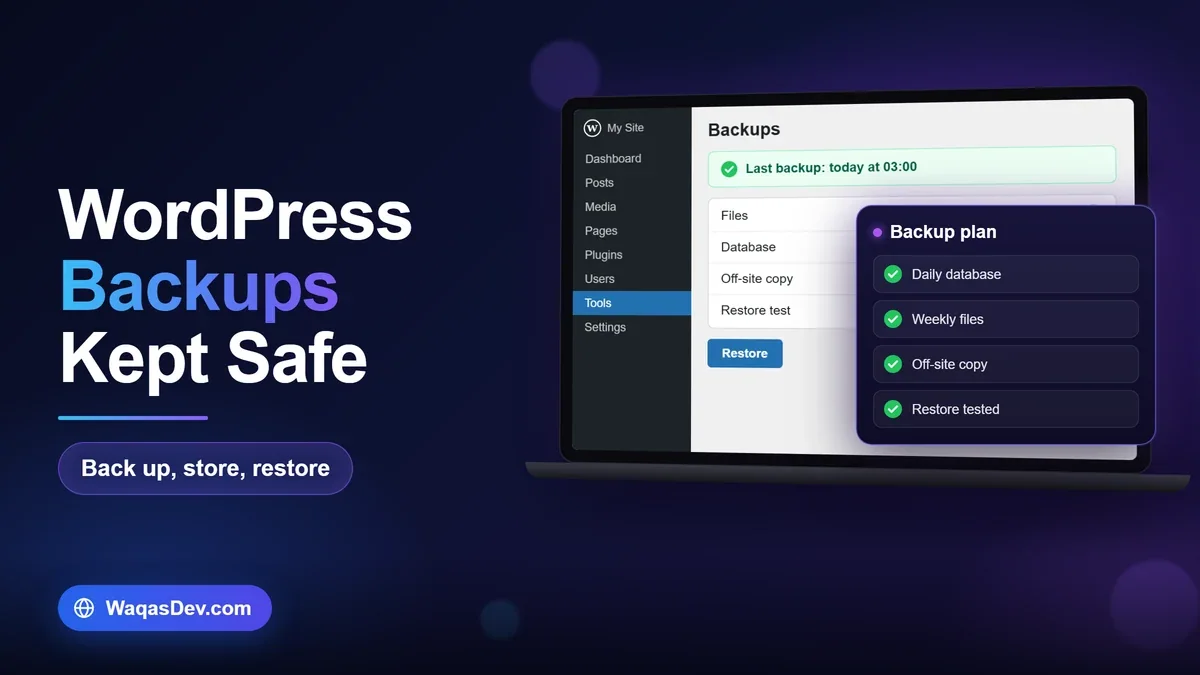
A WordPress backup is a full copy of your site that you can put back when something breaks: a bad update, a hacked plugin, a page deleted by mistake. With a recent copy stored somewhere safe, most of those turn into a short repair job instead of a rebuild.
I use UpdraftPlus on my own site, so the plugin steps below use it. Near the end there’s a short section on the October 2026 UpdraftCentral incident and what UpdraftPlus users should check.
What a WordPress backup must include
Every WordPress site has two parts, and the WordPress documentation says you need both to fully restore it.
- The database holds your posts, pages, comments, settings, and users. On a WooCommerce store it also holds products, orders, and customers.
- The files are WordPress itself, your theme, plugins, uploaded images,
wp-config.php, and.htaccess.
Restore only the database and you get your text without images or design. Restore only the files and you get the design with empty pages.
Tools > Export in the dashboard often gets mistaken for a backup. It saves posts, pages, comments, categories, tags, and users as an XML file, which is handy for moving content, but your theme, plugins, and uploads aren’t in it.
Three ways to back up WordPress
Option 1: your host’s built-in backups
Most managed hosts back up your site automatically. Find the Backups section in your host’s control panel and check how often it runs, how many days of copies it keeps, and whether you can download a copy.
Host backups need no setup, which makes them a good first layer. They sit with the same company that runs your site, though, so count them as one copy rather than the whole plan.
Option 2: a backup plugin (UpdraftPlus free)
A backup plugin runs inside WordPress and sends copies elsewhere on a schedule. The free UpdraftPlus on WordPress.org schedules backups, restores from the dashboard, and sends copies to Google Drive, Dropbox, Amazon S3, FTP, email, and a few other destinations.
- Install and activate UpdraftPlus from the Plugins screen.
- Go to Settings > UpdraftPlus Backups and open the Settings tab.
- Pick a File backup schedule and a Database backup schedule, and how many of each to keep.
- Under Choose your remote storage, click Google Drive or Dropbox, follow the prompts to connect it, and click Save Changes.
- On the Backup / Restore tab, click Backup Now, include the files and the database, and send the backup to remote storage.
The finished backup shows up under Existing backups. Open your Google Drive or Dropbox and make sure the files actually arrived.
The free version sends backups to one remote location. Backing up to several locations at once is a Premium feature, so free users get their second copy another way, which the next section covers.
Option 3: a manual backup
A manual copy is handy before a big change, or when you want a backup on your own computer.
- Files: download your site folder over SFTP or through your host’s file manager. At a minimum, grab
wp-contentandwp-config.php. - Database: in phpMyAdmin, select your WordPress database, open the Export tab, keep Quick and the SQL format selected, and click Go.
If your server has WP-CLI, one command exports the database:
wp db exportKeep both in a dated folder somewhere private, because wp-config.php contains your database password.
Where to keep your backups
A backup stored only on your site’s server can vanish along with it. A CISA guide on data backups recommends the 3-2-1 rule: 3 copies of your data, on 2 different types of storage, with 1 copy off-site. For a WordPress site, that can look like this:
- Your host’s automatic backups.
- UpdraftPlus sending a copy to Google Drive or Dropbox.
- Once a month, the latest backup downloaded to your computer or an external drive.
Keep several versions, too. The WordPress documentation suggests at least 3 to 5 recent backups. Problems aren’t always noticed on day one, and if a hack sat quietly for a week, your newest backup has it. The older clean copy is the one you’ll want.
How often to back up
Match the schedule to how often your site changes. The WordPress documentation suggests weekly backups for small sites, daily backups for busy ones, and a backup before every upgrade.
| Your site | Database | Files |
|---|---|---|
| Business site that rarely changes | Weekly | Weekly |
| Blog with new posts each week | Daily | Weekly |
| WooCommerce store or membership site | Every few hours | Daily |
Stores need the tightest schedule because orders, customer accounts, and stock changes all land in the database. A database restore puts it back exactly as it was at backup time, so restoring last night’s copy at 4 pm removes every order placed since then. UpdraftPlus free can back up the database as often as every 2 hours. I’ve written more about day-to-day store care in my lessons from running a WooCommerce store.
Whatever the schedule, take a fresh backup right before you update WordPress, a theme, a plugin, or your PHP version.
Test a restore before you need one
A backup you’ve never restored is a guess. A storage connection can stop working without you noticing, and a large restore can time out halfway.
Test on a staging site, a private copy of your site that visitors never see. Restore your latest backup there, then click through the home page, a few posts, your contact form, and for a store, the cart and checkout. Do it once after setup and again every few months.
How to restore a WordPress backup
Restore with UpdraftPlus
- Go to Settings > UpdraftPlus Backups and open the Backup / Restore tab.
- Under Existing backups, pick a backup from before the problem started and click Restore.
- Choose which parts to restore. For a full rollback, select all of them.
- Click Restore, read any warnings UpdraftPlus shows, then click Restore again.
- Wait for the Restore successful! message and log in again if asked.
If the dashboard won’t load, start from a fresh WordPress install: add UpdraftPlus, connect the same remote storage, click Save Changes, then click Rescan remote storage. Your backups appear in the list. You can also use Upload backup files with copies from your computer.
Restore from your host or a manual copy
In your host’s control panel, open Backups, pick a date, and restore the whole site or only what you need. Restoring only the database is handy when someone deleted pages or changed settings by mistake and your files are fine.
For a manual backup, upload the files over SFTP first, then import the database in phpMyAdmin’s Import tab. The WordPress documentation recommends that order.
Afterward, check your main pages and forms, update anything the older backup rolled back, and confirm your SEO settings came through. My technical SEO checklist lists what to look at.
What the October 2026 UpdraftPlus incident means for you
TeamUpdraft, the company behind UpdraftPlus, reported that someone got into its teamupdraft.com website over the weekend of October 17 and 18, 2026, and likely reached its customer database. That database held connection keys for UpdraftCentral, TeamUpdraft’s dashboard for managing many sites in one place. Attackers used those keys to install malicious plugins on connected sites, and Patchstack logged the installs on October 18 and 19.
Some perspective first. TeamUpdraft says the UpdraftPlus plugin and its downloads were unaffected, and so were backups in your own remote storage. If you use free UpdraftPlus and never created a teamupdraft.com account, it says no action is needed beyond keeping the plugin updated.
If you did connect a site to a teamupdraft.com account, check it even if you never used UpdraftCentral. The “Add this website to UpdraftCentral” box was ticked by default, so a site could hold a key its owner didn’t know about. Version 1.26.14 turned that default off.
TeamUpdraft’s advisory asks you to:
- Update to UpdraftPlus 1.26.13 (free) or 2.26.13 (Premium) or later, logging in to each site’s own dashboard. These versions revoke older UpdraftCentral connections.
- Delete the keys under Settings > UpdraftPlus Backups > Advanced Tools > UpdraftCentral > Manage existing keys. Removing a site from the UpdraftCentral dashboard leaves its key on the site.
- Look for plugins you don’t recognize, including must-use plugins. “Site Health Cache” came up repeatedly. Some of these plugins hide from the Plugins screen, so also check
wp-content/pluginsandwp-content/mu-pluginsin your host’s file manager. TeamUpdraft says to deactivate a suspicious plugin and then delete its folder directly, instead of using the dashboard’s Delete link. - Check for administrator or editor accounts you don’t know. Researchers saw the backdoor create Editor accounts with admin-level permissions.
- Change your teamupdraft.com and admin passwords, and reconnect your remote storage with fresh credentials. UpdraftVault users have to reconnect, since TeamUpdraft disconnected every site from Vault.
- If anything looks wrong, restore a backup from before October 17 and still finish the steps above. A restore leaves the old keys and passwords as they were.
For the full cleanup, see what to do when your WordPress site is hacked. My hacked marketplace rebuild shows what a recovery can involve.
What I take from this: the weak spot was a connected service holding a key some owners didn’t know existed. That’s worth checking on every site you run, whichever backup tool you use.
Keep your backups safe
A backup holds your whole site, including your database password and, for stores, customer details. Treat the storage the way you treat the site:
- Use a strong, unique password and two-factor login on the Google Drive, Dropbox, or S3 account that stores your backups, and share that folder only with people who need it.
- A few times a year, review what’s connected: remote storage and UpdraftCentral keys in UpdraftPlus, and old entries under Users > Profile > Application Passwords. Remove what you don’t use.
- Download manual backup files to your computer, then delete them from the server.
- Keep your backup plugin updated like everything else.
My WordPress security checklist covers the rest of the basics.
Frequently asked questions
Does WordPress have a built-in backup?
WordPress has no full backup tool of its own. Tools > Export saves your content as an XML file and leaves out your theme, plugins, and uploaded files. For a complete copy, use your host’s backups, a plugin, or the manual method.
Is UpdraftPlus still safe to use?
TeamUpdraft says the plugin files and downloads were unaffected; the stolen keys came from its website. Keep the plugin updated and delete any UpdraftCentral keys you don’t use. It’s still the backup plugin on my own site.
How many backups should I keep?
The WordPress documentation suggests at least 3 to 5 recent ones. I’d also keep one from a few weeks back, in case a problem went unnoticed for a while.
Want me to set this up for you?
If you’d rather hand this off, I can set up backups on your WordPress or WooCommerce site: a schedule that fits how often it changes, off-site storage, and a test restore so you know it works. Email [email protected] and tell me about your site.
Sources
- TeamUpdraft: Security incident, October 2026
- BleepingComputer: Stolen UpdraftCentral keys used to backdoor WordPress sites
- Search Engine Journal: UpdraftPlus WordPress plugin security breach enables backdoor attacks
- Patchstack: UpdraftCentral key compromise used to install WordPress backdoors
- UpdraftPlus on WordPress.org (features and changelog)
- UpdraftPlus free vs Premium
- TeamUpdraft docs: How to back up with UpdraftPlus
- TeamUpdraft docs: Scheduling file and database backups
- TeamUpdraft docs: How to restore a WordPress site with UpdraftPlus
- WordPress Developer Resources: Backups
- WordPress Developer Resources: Backing up your database
- WP-CLI: wp db export
- WordPress Documentation: Tools Export screen
- CISA: Data backup options (PDF)