WordPress Site Hacked? What to Do First, Step by Step
WordPress site hacked? Follow this calm, step-by-step plan to spot the signs, lock down access, clean or restore, and clear Google's security warning.
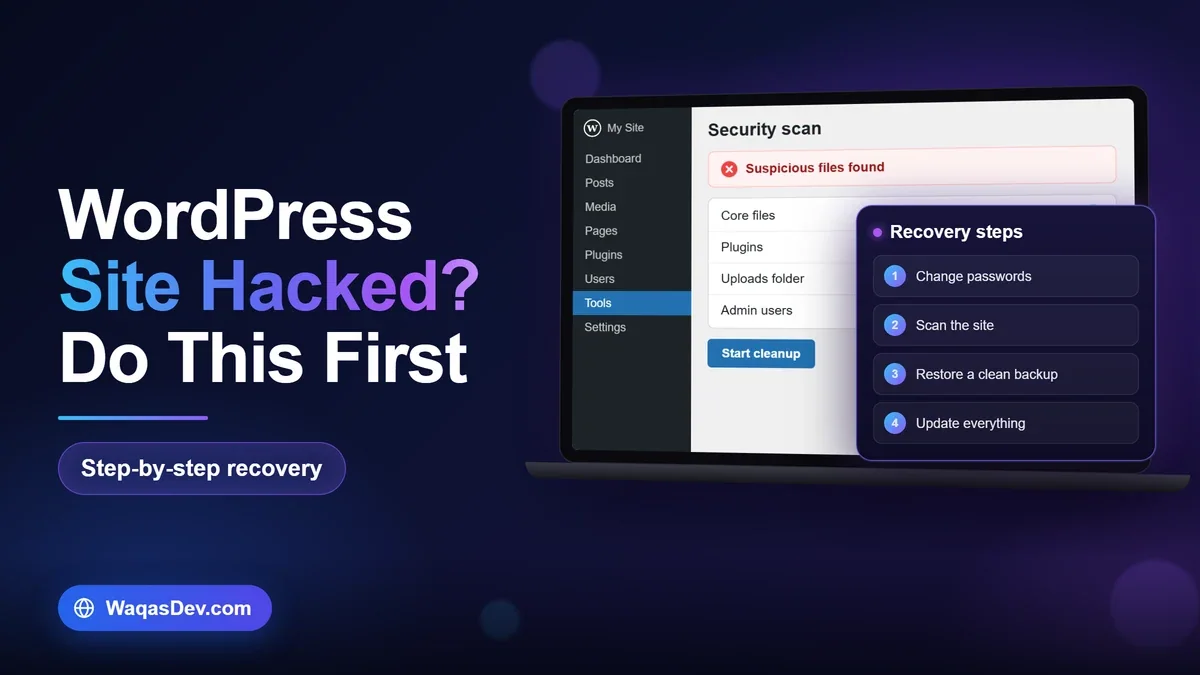
Finding out your WordPress site was hacked is a horrible moment. Maybe Google shows a warning next to your name, or a customer emails to say your shop sent them somewhere strange. Take a breath. Hacked sites get cleaned up all the time, and the job goes much better in the right order.
This guide gives you that order, from the first hour to the end of the first week. It comes from real work: this year I cleaned up and rebuilt a hacked WooCommerce + Dokan marketplace for AladdinStores, and a few lessons from that job show up below. You can do most steps from your dashboard or with your host’s support team, and I’ve added a hands-on option where it saves time.
Signs your WordPress site is hacked
Watch for these common signs:
- Google shows “This site may be hacked” under your listing, or your browser shows a red warning page.
- Visitors land on spam, gambling, or pill sites when they open your pages.
- Posts, pages, or comments appear that you never wrote, usually stuffed with links.
- You find admin users you don’t recognize, or your own login suddenly fails.
- Your host suspends the site or warns you about malware or spam email from your account.
- Readers tell you their antivirus blocked your site.
The first hour: stay calm and write it down
WordPress’s own hacked-site guide starts with “Stay calm,” and it’s good advice. Rushed fixes tend to wipe out the clues you need later.
- Write down what you see. Note what looks wrong, when you noticed it (with your time zone), and anything that changed recently, such as a new plugin or a theme edit. Take screenshots. This becomes your incident report.
- Back up the site as it is now. Saving a hacked copy sounds odd, but if the cleanup goes wrong you’ll want something to fall back on. Label it as infected so nobody restores it by mistake. My backup guide covers the easy ways to do this.
- Protect your visitors. If the site is redirecting people or serving malware, Google advises taking it offline for now, ideally behind a holding page served from outside the hacked site. Google also says short downtime during recovery is unlikely to hurt your rankings.
- Contact your host’s support. They can confirm whether it’s a hack or an outage, check other sites on the same account, and take the site offline for you. They may also hold logs and backups you can’t reach.
Change every password and revoke access keys
Start with your own computer. WordPress’s guide notes that some hacks begin with malware on the owner’s laptop stealing logins, so run a full antivirus scan before you type any new password.
Then change these, using long, unique passwords from a password manager:
- Every WordPress administrator account. Ask your other users to reset theirs too.
- Your hosting control panel, SFTP or FTP, and the database password. A new database password also has to go into
wp-config.php, so ask your host if you’re unsure. - The email account linked to your admin user, since whoever controls that inbox can reset your WordPress password.
Next, cut off the apps and services that connect to your site:
- In Users > Profile, scroll to Application Passwords and click “Revoke all application passwords.” Recreate only the ones you need after the cleanup.
- In WooCommerce > Settings > Advanced > REST API, revoke any key you don’t recognize or no longer use.
- Disconnect backup dashboards, site managers, and automation tools, then reconnect them later with fresh keys.
A recent case shows why that last step matters. In October 2026, attackers who got hold of UpdraftCentral connection keys in a breach at TeamUpdraft used them to add administrator accounts and install malicious plugins on connected sites. TeamUpdraft warned that disconnecting stops access through UpdraftCentral but leaves anything already installed in place.
Finally, log everyone out by changing your WordPress security keys and salts in wp-config.php. WordPress has a key generator for this, and your host can do it for you. On the marketplace I rotated the salts for exactly this reason: it invalidates any login cookie an attacker may have stolen.
Scan the site and look for intruders
Two free scanners make a good first pass:
- Wordfence, a free plugin, compares your WordPress, theme, and plugin files with the official copies on WordPress.org and looks for malware, backdoors, and SEO spam.
- Sucuri SiteCheck scans your public pages from the outside. Sucuri says it can’t see your server files, so a clean result only means nothing showed up from outside.
Then check three places yourself:
- Users > All Users, filtered by Administrator. Note the username and date of any account you don’t recognize, then remove it.
- Plugins > Installed Plugins, including the Must-Use tab if you see one. A plugin you never installed is a red flag.
- The
wp-content/pluginsandwp-content/mu-pluginsfolders, through your host’s file manager or SFTP. TeamUpdraft reported that some malicious plugins in its incident hid from the Plugins and Users screens, so the folders give you the honest view.
If you or your developer use WP-CLI, these read-only checks are faster:
wp core verify-checksums
wp plugin verify-checksums --all
wp user list --role=administrator --skip-plugins
The first two compare your files with the WordPress.org originals. Premium plugins aren’t hosted there, so compare those with a fresh download from the vendor.
Check the database too. On the AladdinStores marketplace the files came back clean: WordPress core matched its official checksums, 49 plugins verified against the public repository, and 37,000 upload files narrowed to ten PHP files, all accounted for. The malware sat in the database instead. Six settings that load on every page held a payload that swaps the real page for a remote gambling script. It was dormant, and a files-only check would have missed it.
Look past the obvious spam as well. My keyword search for gambling terms found 88 spam comments. Checking the links inside comments turned up 214 more that never used a gambling word, so the real total was 302.
Restore a clean backup or clean it by hand
Restoring is usually the fastest route if you have a backup from before the first sign of trouble. Anything added since then, such as orders, posts, or sign-ups, will be lost unless you export it first. A restore also brings back the weakness the attacker used, so do the password, key, and update steps straight after.
Cleaning by hand is the route when there’s no clean backup. WordPress’s guide recommends:
- Replace the
wp-adminandwp-includesfolders with fresh copies of the same WordPress version, uploaded over SFTP. The dashboard’s reinstall option tends to overwrite existing files only, and hacks often add new ones. - Reinstall each plugin and theme from a fresh download, and delete the ones you don’t use.
- Check
.htaccess,index.php, and your theme’sheader.php,footer.php, andfunctions.phpfor code you didn’t add. - Look for PHP files inside
wp-content/uploads, a folder meant for images and documents.
I’d bring in help if you run a store, if Google shows a warning, if the hack came back after a cleanup, or if you can’t work out how the attacker got in. Google is blunt about that last one: fix the hole or the site is likely to be reinfected. Test risky changes on a staging site when you can. The marketplace had no usable staging copy, so every change ran live with a backup and a written undo step.
Update everything once it is clean
- Update WordPress, every plugin, and every theme.
- Delete inactive plugins and themes.
- Check your PHP version. WordPress recommends PHP 8.3 or newer and warns that end-of-life versions may expose your site to security vulnerabilities. My guide to updating PHP in WordPress walks through it.
- Change your passwords again. WordPress’s guide says to do this once the site is confirmed clean, even if you changed them on day one.
Clear the warning in Google Search Console
- Add and verify your site in Google Search Console if you haven’t already.
- Open the Security issues report. It lists what Google found with sample URLs, though Google notes the list isn’t complete.
- Fix the issue across the whole site. Google lifts the warning only when every page is clean.
- Click Request Review and explain what was wrong, what you did, and the result.
- Google emails you when the request arrives and when the review is done, which can take a few days to a few weeks. Send one request at a time, because Google warns that early or repeated requests can get a site marked as a repeat offender.
If your store holds customer data
WooCommerce says that by design, card numbers and security codes are never stored on your website. Your database does hold names, emails, addresses, phone numbers, order history, and customer accounts. Attackers have also planted card-skimming code on WordPress checkout pages that copies card details as shoppers enter them, as Sucuri has documented.
If customer data may have been exposed:
- Tell your payment provider, especially if checkout pages or scripts were changed.
- Work out what data the attacker could reach and for how long.
- Check the rules where you and your customers live. Many places have breach-notification laws, and in the US every state has one. This isn’t legal advice, so ask a lawyer what applies to you.
- Tell affected customers plainly and quickly what happened, what data was involved, what you’ve fixed, and what they should do, such as changing their password and watching for phishing emails. The US FTC notes that quick notice helps people protect themselves sooner.
How to stop it happening again
Keep automatic backups somewhere other than the public part of your server. One finding on the marketplace job was my own mistake: a working backup folder I’d created on the server was reachable from the public web. I reported it the same day, locked it, and moved backups out of the web-facing folder for good.
After that, a few habits do most of the work:
- Update weekly, and test big updates on staging first.
- Turn on two-step login for every admin, and keep the number of admin accounts small.
- Turn off the dashboard file editor by adding
define( 'DISALLOW_FILE_EDIT', true );towp-config.php. On the marketplace I also stopped PHP from running inside the uploads folder. - Run a security plugin with a firewall and scheduled scans.
- Review connected services and application passwords every few months.
My WordPress security checklist covers each of these in more detail.
Frequently asked questions
Can I fix a hacked WordPress site myself?
Often, yes, especially a blog or brochure site with a clean backup. If you run a store, if Google has flagged the site, or if the hack keeps coming back, get help.
Is a free malware scanner enough?
Use it as a first check. Remote scanners only see your public pages, and the malware on the marketplace I cleaned lived in the database. Pair a scanner with the manual checks above.
Should I delete WordPress and start over?
You rarely need to, and WordPress’s own guide says a full restart often isn’t practical. Replacing WordPress core, plugins, and themes with fresh copies gets you most of the way and keeps your content, orders, and settings.
Need help cleaning a hacked site?
If you’d rather hand this to someone who has done it, email me at [email protected] with your site address and what you’re seeing. You can read how I handled the AladdinStores marketplace cleanup first.
Sources
- FAQ: My site was hacked (WordPress.org)
- Hardening WordPress (WordPress Developer Resources)
- Application Passwords (WordPress Developer Resources)
- WordPress requirements (WordPress.org)
- wp core verify-checksums (WP-CLI)
- wp plugin verify-checksums (WP-CLI)
- Security issues report (Google Search Console Help)
- “This site may be hacked” (Google Search Help)
- Quarantine your site (web.dev)
- Security incident, October 2026 (TeamUpdraft)
- Stolen UpdraftCentral keys used to backdoor WordPress sites (BleepingComputer)
- Wordfence Security (WordPress.org plugin directory)
- Sucuri SiteCheck
- WooCommerce site and data security FAQ
- WooCommerce REST API documentation
- Stealthy credit card skimmer targets WordPress checkout pages via database injection (Sucuri)
- WordPress skimmers evade detection by injecting themselves into database tables (The Hacker News)
- Data breach response: a guide for business (US FTC)
- Hacked marketplace, rebuilt (waqasdev.com case study)