Manage Your WooCommerce Store by Chatting With AI
Use WooCommerce MCP to manage products and orders by chatting with Claude. Updated for WooCommerce 11.3 and the free MCP Adapter plugin.
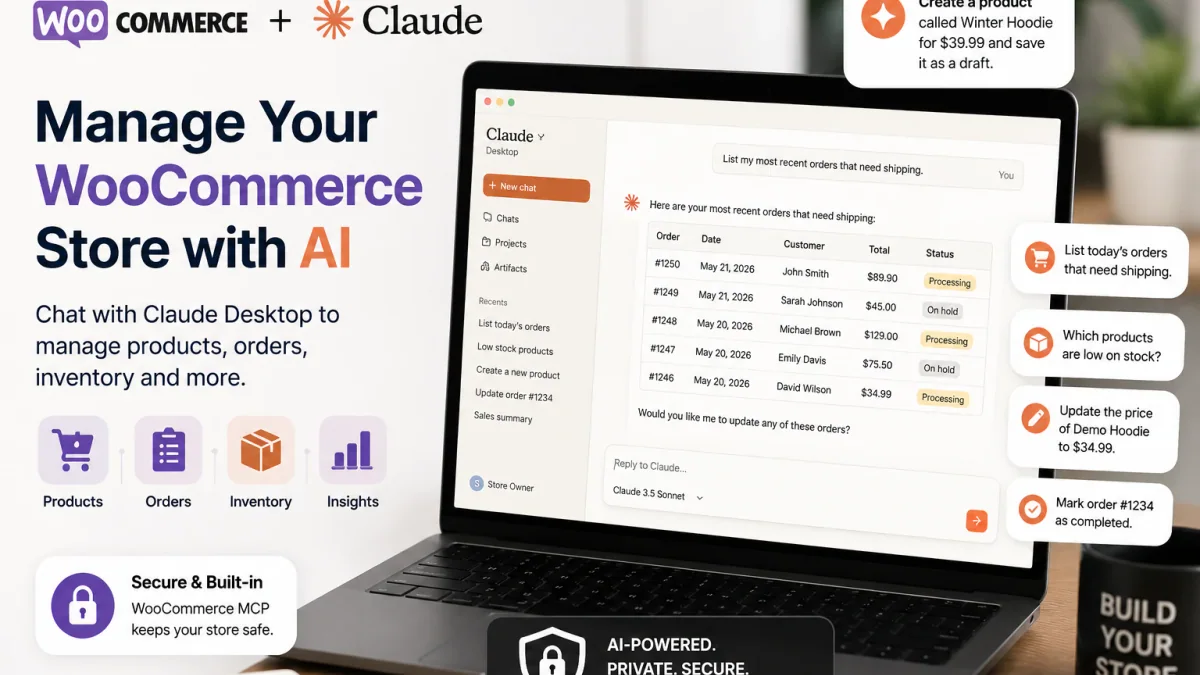
Updated November 2026: WooCommerce 11.3, due this month, changes how AI apps connect to a store. This guide now uses the free MCP Adapter plugin and a WordPress application password. If you set things up with an earlier version of this guide, go straight to [switching from the old setup](#switching-from-the-old-setup).
Quick summary: WooCommerce has built-in AI tools, so an assistant like Claude can work with your store directly. You install one free plugin, create a key, connect Claude once, and then you can run your shop by typing plain requests: “list today’s orders,” “create a product,” “which items are low on stock?”
The technology behind it is called MCP (Model Context Protocol). You do not need to understand it. Think of it as a safe doorway that lets an AI app use a fixed set of store tools, signed in as a user you choose.
This guide is for shop owners, not developers.
What you can ask for
Once it is set up, you just type what you want. A few examples:
- “List my most recent orders and tell me which still need shipping.”
- “Create a product called Winter Hoodie for $39.99 and save it as a draft.”
- “Change the Demo Hoodie price to $34.99.”
- “Mark order #1234 as completed.”
- “Show me the notes on order #1290.”
- “Which products are low on stock?”
The tools cover your products and orders: finding, creating, updating, and deleting products, plus finding orders, reading and adding order notes, and changing an order’s status.
Before you start
- A self-hosted WordPress site with WooCommerce, where you log in as an Administrator.
- WordPress and WooCommerce up to date. The steps below are written for WooCommerce 11.3 and newer, so update WooCommerce first when 11.3 reaches your dashboard.
- Your store on HTTPS (the padlock in the address bar).
- An AI app that supports MCP. I will use Claude Desktop.
Two of the three steps are quick clicks in your dashboard. The only slightly technical part is connecting Claude in Step 3, and I will tell you how to have that done for you if you would rather skip it.
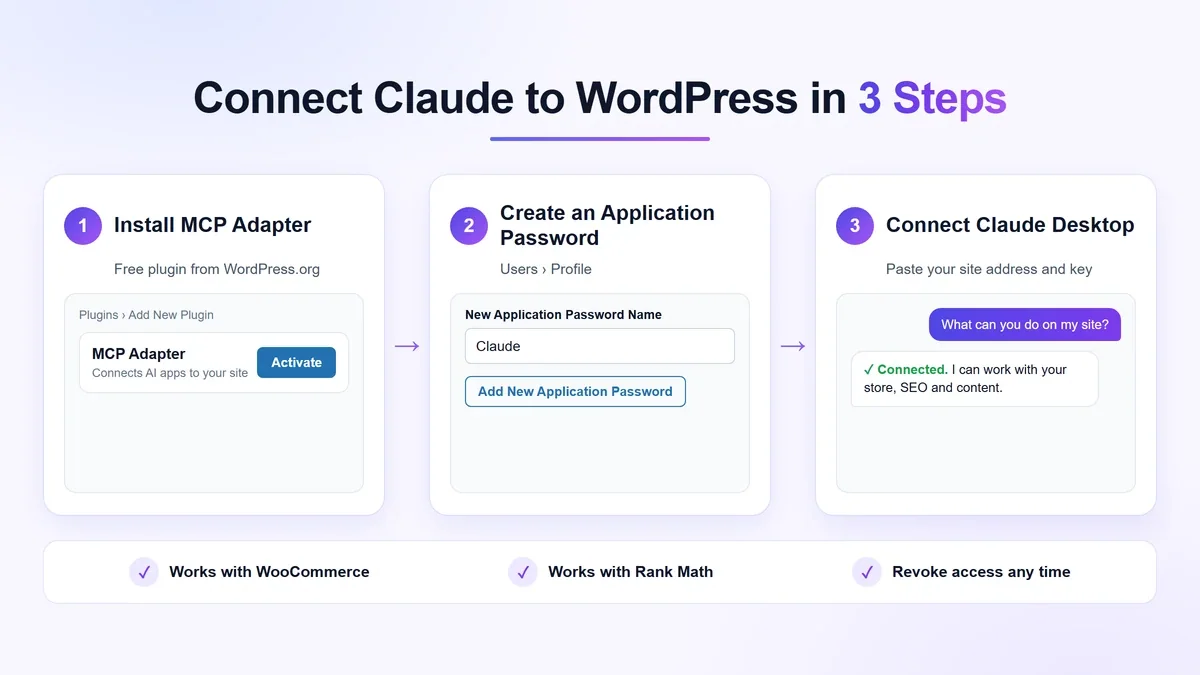
Step 1: install the MCP Adapter plugin
WooCommerce registers its store tools with WordPress automatically, so there is no WooCommerce setting to switch on. The free MCP Adapter plugin, made by the WordPress AI team, is what opens the doorway for your AI app.
- In your dashboard, go to Plugins, Add New Plugin.
- Search for MCP Adapter, then click Install Now and Activate.
That is the whole step. If you or your developer prefer the command line, it is one line:
wp plugin install mcp-adapter --activateStep 2: create an application password
Your AI app signs in to the store with a WordPress application password. It is a separate key just for apps, and you can revoke it any time without changing your normal login.
- Go to Users, Profile and scroll down to Application Passwords.
- Type a name you will recognize, like “Claude”, and click Add New Application Password.
- Copy the password right away. It looks like
xxxx xxxx xxxx xxxx xxxx xxxx, and WordPress shows it only once, so keep it somewhere safe like a password manager.
This key acts with the same permissions as the user it belongs to. The safety section below shows how to keep that tight.
Step 3: connect Claude Desktop
This is the one slightly technical step, and it is a one-time job. If you would rather not touch a config file, skip to the end.
- Open Claude Desktop, click the Claude menu, then Settings, Developer, Edit Config. That opens a file called
claude_desktop_config.json. - Paste the block below, replacing your store address, your WordPress username, and the application password from Step 2. Be careful: this is plain text where a single missing comma or quote stops it working.
{
  "mcpServers": {
    "woocommerce": {
      "command": "npx",
      "args": ["-y", "@automattic/mcp-wordpress-remote@latest"],
      "env": {
        "WP_API_URL": "https://YOURSTORE.com/wp-json/mcp/mcp-adapter-default-server",
        "WP_API_USERNAME": "your-wordpress-username",
        "WP_API_PASSWORD": "the application password you just copied"
      }
    }
  }
}- Save the file, then fully quit Claude Desktop (use Quit, not just closing the window) and open it again.
- This helper needs Node.js installed on your computer. If Claude reports an error, install the LTS version from nodejs.org, restart, and try again.
If you use Claude Code in a terminal instead of the desktop app, you can do the same with one command:
claude mcp add woocommerce --env WP_API_URL=https://YOURSTORE.com/wp-json/mcp/mcp-adapter-default-server --env WP_API_USERNAME=your-wordpress-username --env WP_API_PASSWORD="the application password" -- npx -y @automattic/mcp-wordpress-remote@latestTo check it worked, start a chat and ask: “What can you do with my WooCommerce store?” Claude looks up the store tools your site offers and lists them. Behind the scenes it reaches them through three general helpers (discover, get details, run), so do not worry if Claude’s tool list shows those names instead of “products” and “orders.”
For the bigger picture, including what other plugins add to the same connection, see my WordPress MCP guide.
Step 4: everyday store tasks you can just ask for
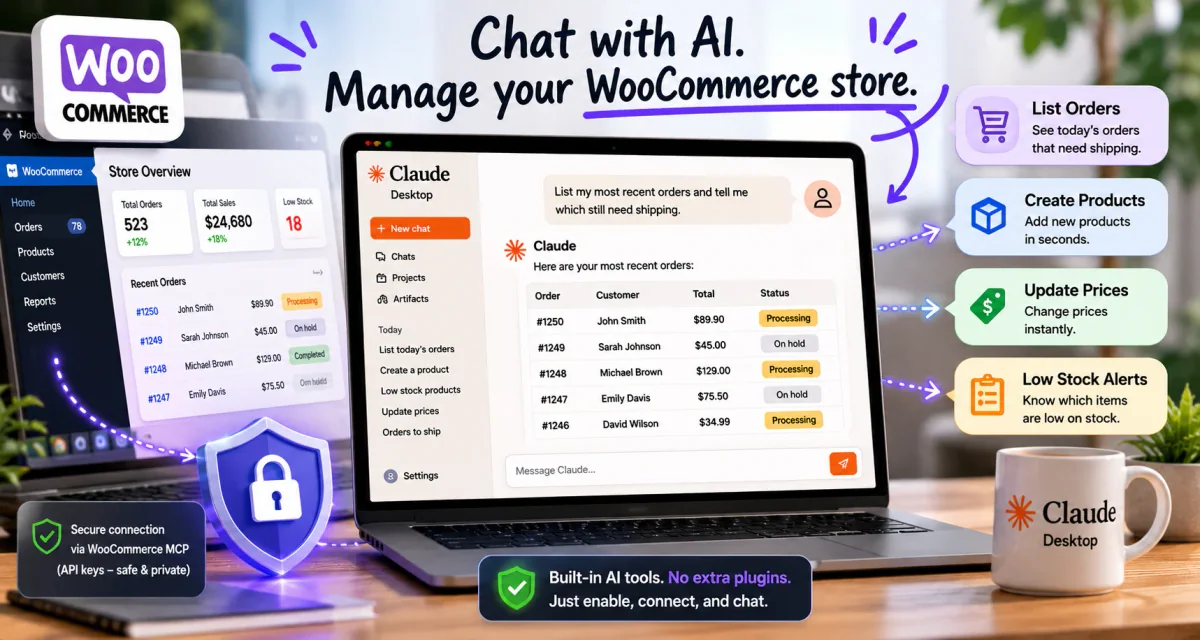
Now you simply ask. A few to try:
- “List my most recent orders and tell me which still need shipping.”
- “Create a product called Winter Hoodie for $39.99 and save it as a draft.”
- “Change the Demo Hoodie price to $34.99.”
- “Mark order #1234 as completed.”
- “Add a note to order #1290: customer asked for gift wrapping.”
- “Which products are low on stock so I know what to reorder?”
- “Read my last 20 orders and tell me my best-selling product this week.”
The built-in tools focus on products and orders. For a quick sales summary, ask the AI to read your recent orders and add them up for you.
Switching from the old setup
Earlier versions of this guide, and of WooCommerce, used a checkbox called WooCommerce MCP, a WooCommerce REST API key, and the address /wp-json/woocommerce/mcp. WooCommerce 11.3 retires that address, so an older connection stops with an error once your store updates. Moving over takes about five minutes:
- Install and activate the MCP Adapter plugin (Step 1).
- Create an application password (Step 2).
- In
claude_desktop_config.json, changeWP_API_URLtohttps://YOURSTORE.com/wp-json/mcp/mcp-adapter-default-server, delete theCUSTOM_HEADERSline, and addWP_API_USERNAMEandWP_API_PASSWORDas shown in Step 3. - Fully quit and reopen Claude Desktop.
- Revoke the REST API key you made for Claude under WooCommerce, Settings, Advanced, REST API. The application password replaces it.
Staying safe
WooCommerce describes its AI tools as a preview and reminds you that order tools can show customer details. A few habits keep things calm:
- Use a limited account. An application password can do everything its user can do. Consider creating a separate user with the Shop manager role for your AI, which can manage products and orders but not plugins or site settings, and check that the tasks you need still work.
- Ask for drafts. When it creates products, have it save them as drafts so nothing goes live without your review.
- Ask to see changes first. Tell it to list each change and wait for your yes before it updates prices, stock, or orders.
- Remember orders hold customer details, so connect only apps and accounts you trust.
- Keep your password safe and revoke any you are not using from Users, Profile, Application Passwords.
You can switch the whole thing off any time by revoking the application password or deactivating the MCP Adapter plugin.
Honest limits right now
- WooCommerce’s AI tools are in developer preview, so expect changes as they mature, and try new things on a staging copy of your store first.
- The tools focus on products and orders. Deeper extras (subscriptions, complex reports, and so on) come later or from add-ons.
- The AI works with your store data. It does not redesign your shop or touch your theme or hosting.
Frequently asked questions
Do I need to install the MCP Adapter plugin?
Yes. From WooCommerce 11.3 onward, the free MCP Adapter plugin is how AI apps connect. WooCommerce supplies the store tools, and the plugin opens the connection to them.
Do I still need a WooCommerce REST API key?
Your WordPress application password takes its place. WooCommerce’s own guide asks you to use an application password for this connection.
Do I need to know how to code?
Installing the plugin and making a key are simple clicks. Connecting your AI app (Step 3) is a one-time technical step; someone can do it for you once and then you are set.
Does it cost anything?
The MCP Adapter plugin and WooCommerce’s AI tools are free. You only pay for whatever AI app you use.
Will it change my store without me knowing?
It can only act within the permissions of the user its application password belongs to. Use a limited account, ask for drafts, and have it show each change first until you trust it.
I also use Rank Math. Do I need a second connection?
No. If Rank Math is active, its SEO tools show up through the same MCP Adapter connection. My guide to checking and fixing your WordPress SEO with AI shows what you can ask for.
Can I use ChatGPT or another app instead of Claude?
Any app that supports MCP can connect in a similar way. Claude Desktop is just the simplest to start with.
Want us to set it up for you?
If connecting the AI is the part you would rather skip, that is exactly what I do. I install the right plugin, set up a safe account with the correct permissions, and connect your AI, so all you have to do is chat with your store. See waqasdev.com/automation or email [email protected].