Taco Tunes Order Grid
A supplier order form that fills itself from WooCommerce and feeds Google Sheets
Description
Taco Tunes is a Toyota car audio retailer. Every time they reordered stock from their suppliers, someone rebuilt the same spreadsheet by hand and worked the order out of it. What they wanted was one place on their own website that knew the catalogue, and numbers their vendors could open in the same sheet the team was filling in.
They came to me asking for it in WPForms.
Where WPForms reached its limit
Worth explaining, because the answer shaped the whole project. WPForms populates the choices inside a dropdown from a taxonomy, one field at a time. Its Repeater field is a user-driven “Add Item” button capped at ten rows, with no server-side way to seed those rows from a product query, and Total fields are disallowed inside a Repeater in any case.
I explained the limit, and showed what a working version would actually take to build. They agreed to a purpose-built plugin instead. Better to lose the easy sale than deliver something that half works.
What the grid does
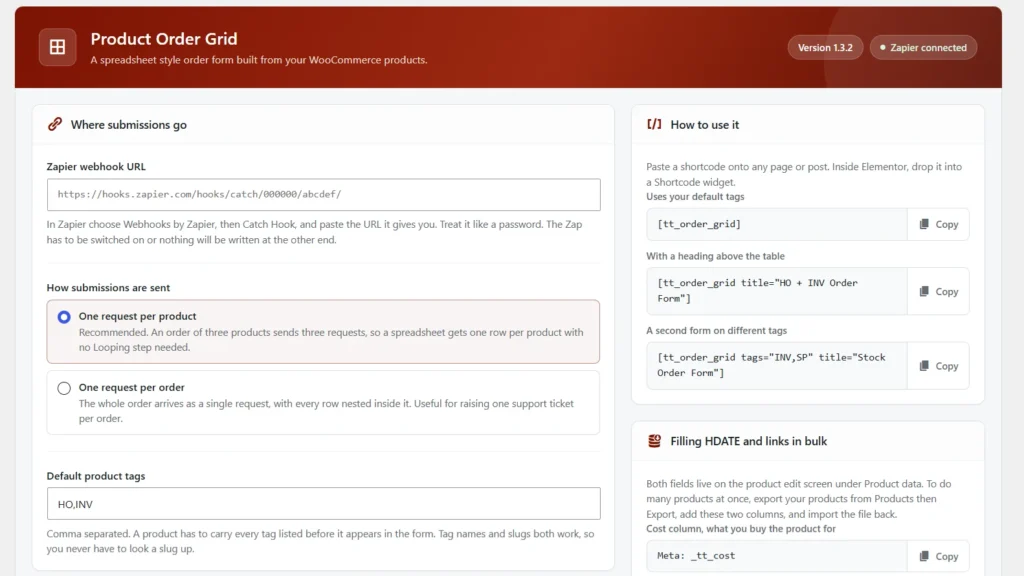
The plugin registers in WordPress as TT Product Order Grid, currently version 1.3.2. Its own screen lives at Settings → Order Grid under the title “Product Order Grid”, with the strapline “A spreadsheet style order form built from your WooCommerce products.” A form goes onto any page with a shortcode:
[tt_order_grid]                                        default tags
[tt_order_grid title="HO + INV Order Form"]             default tags, custom heading
[tt_order_grid tags="INV,SP" title="Stock Order Form"]  a second form, different tags
Rows come from product tags. A settings field holds the default combination, HO,INV on the live store, and a product has to carry every tag in the list before it appears. Tag names and slugs both work, so nobody has to look a slug up.
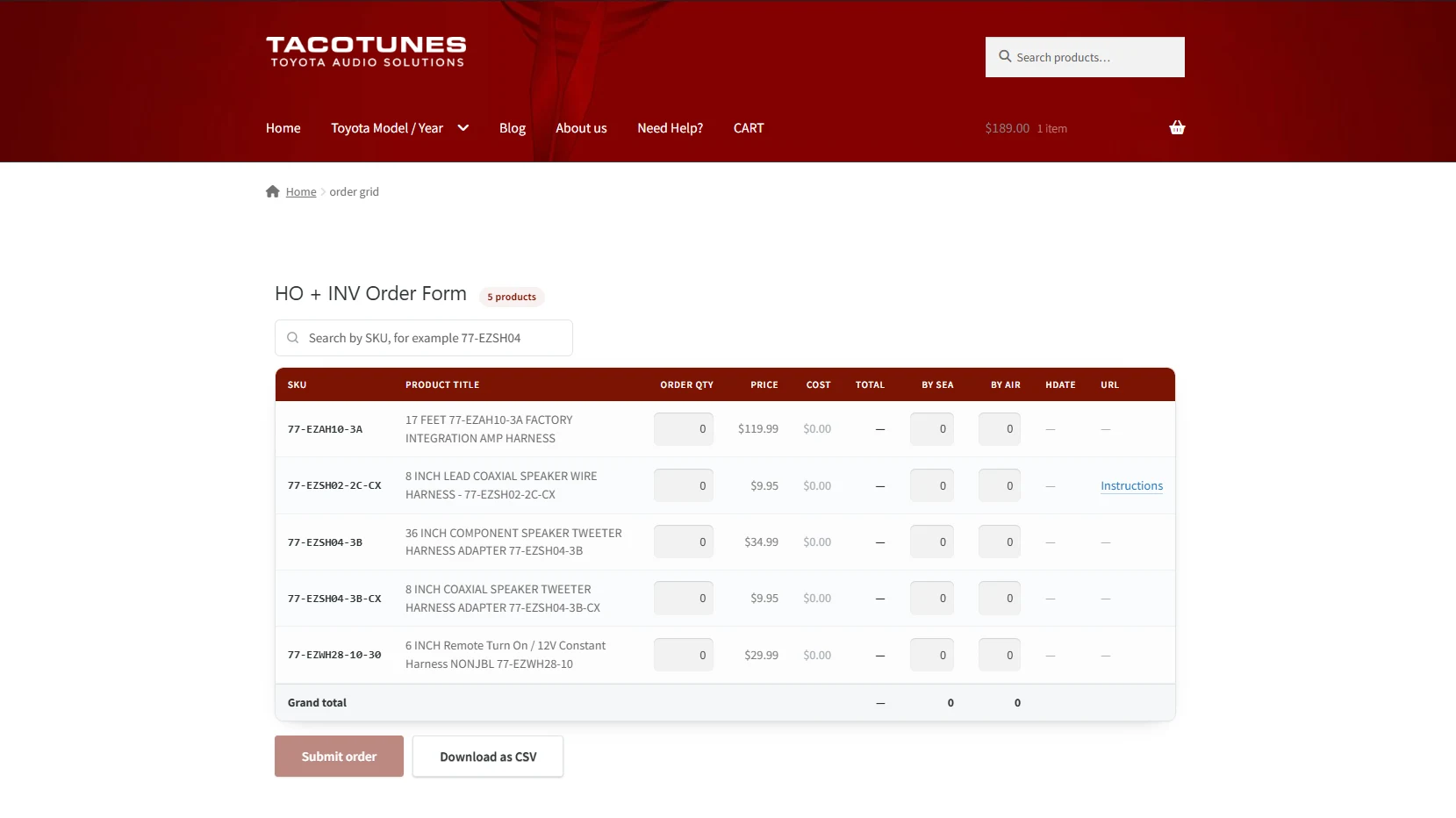
Someone on the team opens the form and the rows are already there, one per product, generated on page load from the live catalogue. The live form is titled “HO + INV Order Form”, carries a count pill reading “5 products” today, and puts a “Search by SKU” box above the table. Columns run SKU, Product title, Order qty, Price, Cost, Total, By sea, By air, HDATE and URL, closing on a Grand total row. SKU, title, price, cost, date and the instruction link come straight out of WooCommerce. Staff type the order quantity and the shipping split, and the totals move as they type. Instruction links render as an “Instructions” hyperlink in the URL column, and underneath sit two buttons, “Submit order” and “Download as CSV”.
The browser checks one rule as staff fill a row, and the server checks it again on submit: shipping by sea plus shipping by air has to equal the order quantity.
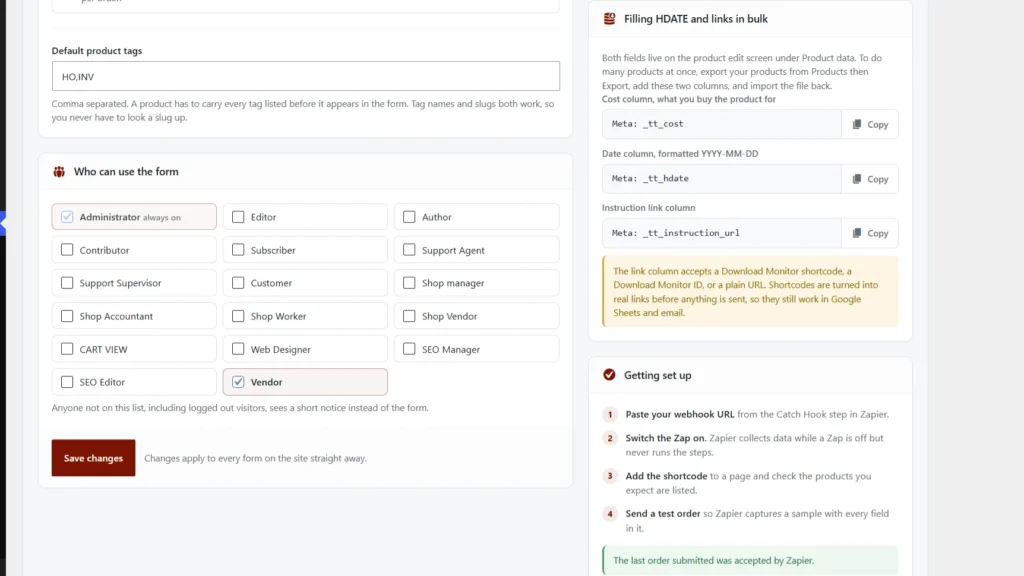
Access is a checkbox matrix over every role on the site. Administrator is always ticked, and the custom Vendor role is ticked on the live store. Everyone outside that list, logged-out visitors included, gets a short notice where the table would be.
The fields the client owns
Titles, SKUs and prices come from WooCommerce already. Cost, the date and the instruction link now live there too, on the product edit screen under Product data:
_tt_costholds what the product is bought for._tt_hdateholds a date, formattedYYYY-MM-DD, and surfaces in the grid as the HDATE column._tt_instruction_urlaccepts a Download Monitor shortcode, a Download Monitor ID, or a plain URL.
They are ordinary post meta, so the client can fill them in bulk with WooCommerce’s own tools: add these keys as columns to a product export, fill the spreadsheet, and import the file back through the WooCommerce CSV importer.
One request per product, one row per line
The obvious integration sends one webhook per order and lets Zapier fan the rows out with its Looping step. It produced wrong data, quietly. Looping only splits genuine line items, so comma-separated text arrives as a single value and every product in the order lands in one cell. The run still reports success.
I reworked the submit path to send one request per product. Three products, three requests, three rows in the sheet. That took the Looping step out of the client’s Zap entirely, leaving two steps to maintain, and used fewer Zapier tasks.
Both modes ship, under a setting called “How submissions are sent”. One request per product is marked Recommended and is what the live store runs. One request per order nests every row inside a single request, which suits a workflow that wants one support ticket per order.
Reading what Zapier actually did with the order
Zapier’s response codes turned out to be a poor signal on their own. A switched-off Zap answers 404 with the body “please unsubscribe me!”, and I watched unknown webhook URLs answer 200. That second one is the dangerous case: the status line reads like a delivery, with no Zap on the other end.
The plugin reads the response body as well as the status code, and a send that fails that check raises an admin notice in WordPress. The settings screen carries a “Zapier connected” status pill, and after a good submission it states the outcome plainly: “The last order submitted was accepted by Zapier.”
A tag whose name and slug disagreed
One of the client’s tags displayed as HO and carried the slug harness-order. Match on slug alone and the grid comes back empty while the page looks perfectly healthy. The plugin resolves each tag by slug first and then by name, so whoever writes the shortcode can type what they see in the tag list, and the settings screen says as much beside the Default product tags field.
Links that survive the trip to a sheet
Fitting instructions live in Download Monitor, and the client’s habit was to store each one as a shortcode. Passed through as typed, a shortcode reaches Google Sheets as literal text a vendor cannot click. The instruction field accepts a Download Monitor shortcode, a Download Monitor ID, or a plain URL, and the plugin resolves each shortcode to a real URL server-side before anything is sent. In the grid it renders as an “Instructions” hyperlink; in the sheet and in email, a vendor gets a link that opens.
What the catalogue actually held
The client believed 50 products carried the relevant tags. Querying the store returned 4 at the time, and a third of the wider tag turned out to be variable and bundled products, which need more than one row each. I raised it early, scoped the form to what the data supported, and flagged the variable products as a separate piece of work.
Where it landed
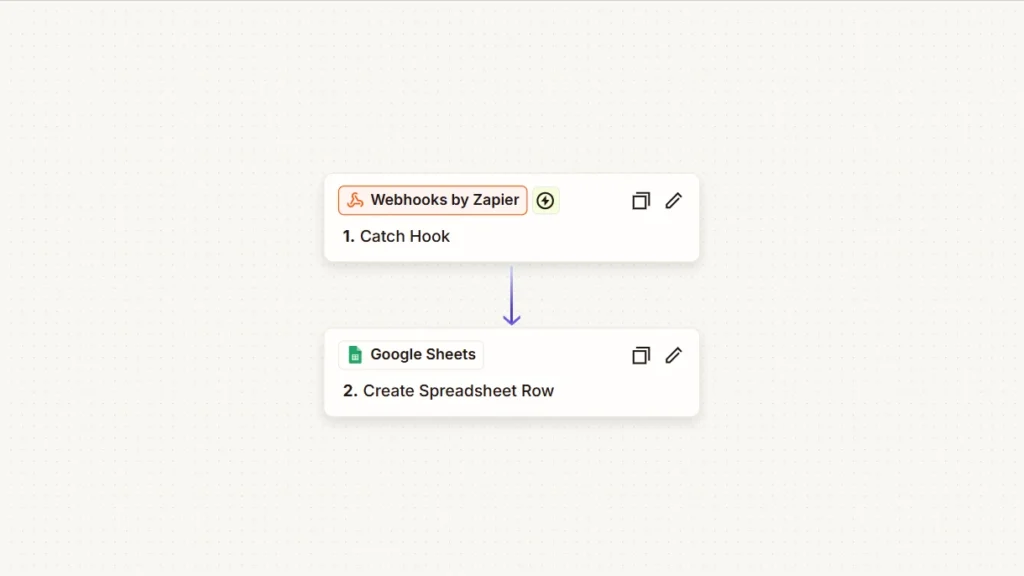
The plugin runs on the client’s production store, tacotunes.com, wired into the Zapier and Google Sheets workflow they run. Their Zap is two steps: a Webhooks by Zapier Catch Hook trigger, then a Google Sheets Create Spreadsheet Row action. Their team places supplier orders from a page built off their live product tags, and every line arrives correctly attributed, with cost, quantity, shipping split and a current link to the fitting instructions.
They have since commissioned further features. The next order form on the next tag combination is a new page and one line of shortcode.